> ## Documentation Index
> Fetch the complete documentation index at: https://docs.wordware.ai/llms.txt
> Use this file to discover all available pages before exploring further.
# Flow
> Call another flow from inside your own
## What does it do?
Flows let you call another flow from inside your own. This can be useful for breaking up your WordApp into smaller,
composable parts, or for reusing common patterns across multiple WordApps. Flows also give you deeper control over
the context window, as the contents produced in intermediate steps of a subflow are not visible to the AI model of the
parent flow.
 ## How do I use it?
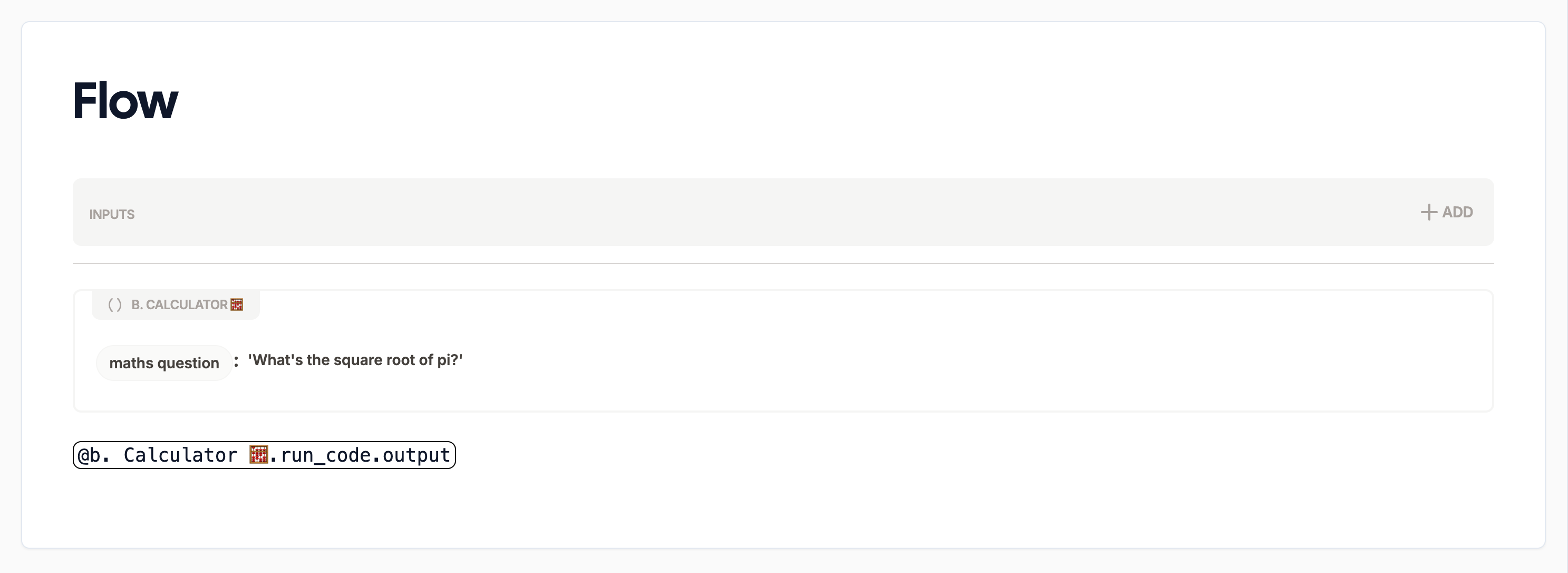
To create a flow, type `/flow` in the editor, and hit `Enter`. You'll be prompted to select which flow you want to call
from your existing flows, and then to provide the inputs for that flow.
## How do I use it?
To create a flow, type `/flow` in the editor, and hit `Enter`. You'll be prompted to select which flow you want to call
from your existing flows, and then to provide the inputs for that flow.
 ### Options
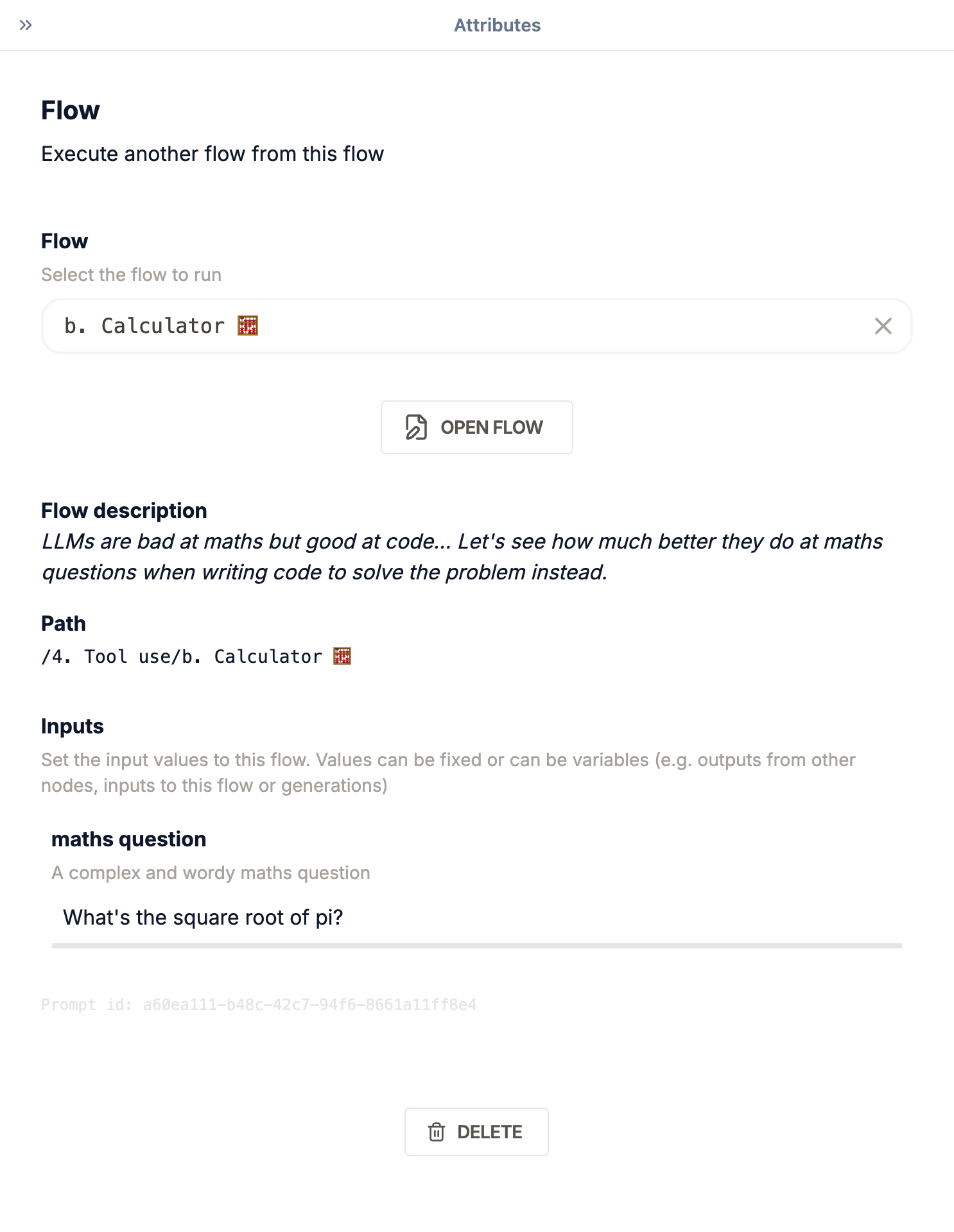
When you create a flow, you'll see a number of options in the sidebar. Here's what they mean:
#### Flow
The flow you want to call. You can select from any of the flows in the current project.
#### Inputs
The inputs you want to pass to the flow. These can be any of the [inputs](/nodes/input) available in the current flow,
or a [@mentions](/nodes/mention) from the current flow.
### Outputs
Flows output all the variables generated by the flow. These can be referenced in the parent flow using a
[@mention](/nodes/mention) with the name of the flow, followed by a dot and the name of the variable.
### Options
When you create a flow, you'll see a number of options in the sidebar. Here's what they mean:
#### Flow
The flow you want to call. You can select from any of the flows in the current project.
#### Inputs
The inputs you want to pass to the flow. These can be any of the [inputs](/nodes/input) available in the current flow,
or a [@mentions](/nodes/mention) from the current flow.
### Outputs
Flows output all the variables generated by the flow. These can be referenced in the parent flow using a
[@mention](/nodes/mention) with the name of the flow, followed by a dot and the name of the variable.