> ## Documentation Index
> Fetch the complete documentation index at: https://docs.wordware.ai/llms.txt
> Use this file to discover all available pages before exploring further.
# Generation
> Harness the power of AI
## What does it do?
Generations are what allows the AI to do something. They give you access to dozens of different AI models. They can help you write, design, and even code. You can use them to generate text, analyze images, and much more. You'll probably want at least one generation in every WordApp, and the more you use them, the more powerful your WordApps become.
 ## How do I use it?
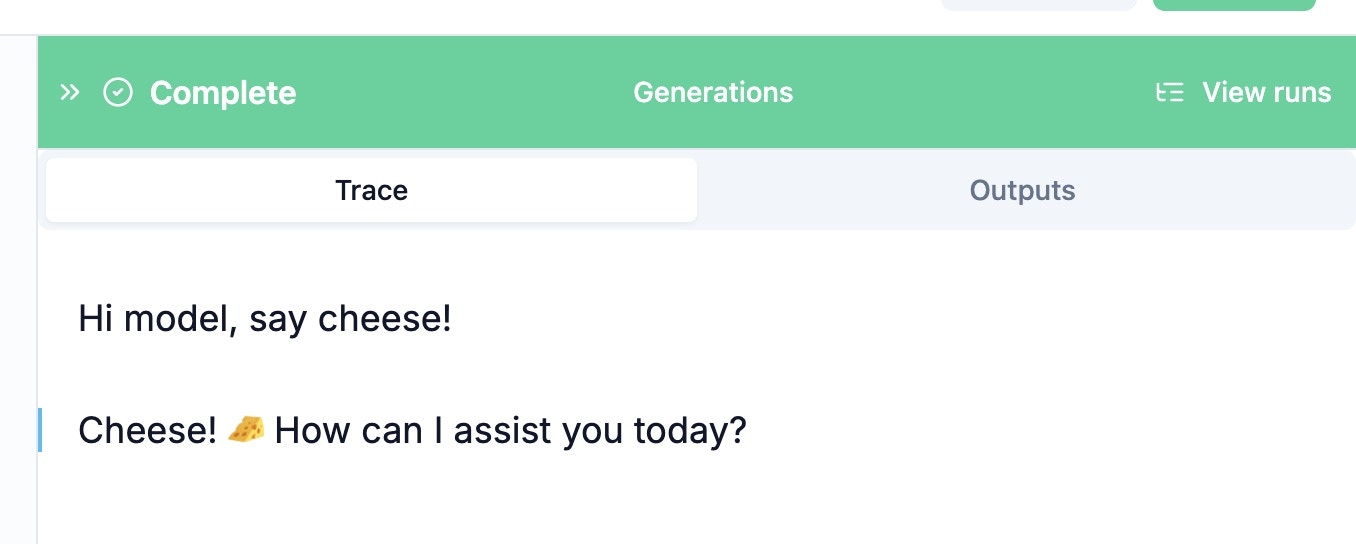
A generation takes all the data that's appeared in the WordApp so far (i.e. everything written above the `/generation` in the editor) and passes it to your AI model of choice. The model then generates new content based on what it's seen.
To create a generation, type `/generation` in the editor, and hit `Enter`. You'll be prompted to fill in some details about the generation, like its name and the model you want to use, further explained below. Once you press run, the model will be fed all the content above the generation and generate new content based on it, which you can then reference with a [@\[name\_of\_generation\]](/nodes/mention).
### Options
A number of options appear in the sidebar when you create a generation. Here's what they mean:
#### Name
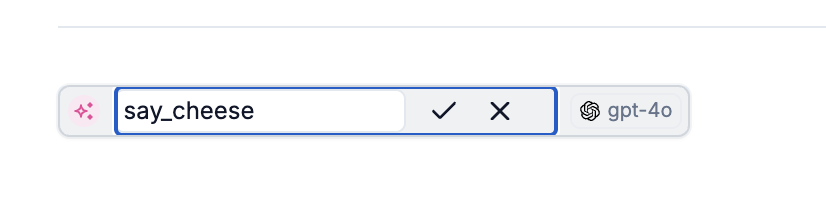
The name of the generation. You'll need this later if you want to reference the output of the generation in future flows.
You can change this in the attributes editor on the right hand side:
## How do I use it?
A generation takes all the data that's appeared in the WordApp so far (i.e. everything written above the `/generation` in the editor) and passes it to your AI model of choice. The model then generates new content based on what it's seen.
To create a generation, type `/generation` in the editor, and hit `Enter`. You'll be prompted to fill in some details about the generation, like its name and the model you want to use, further explained below. Once you press run, the model will be fed all the content above the generation and generate new content based on it, which you can then reference with a [@\[name\_of\_generation\]](/nodes/mention).
### Options
A number of options appear in the sidebar when you create a generation. Here's what they mean:
#### Name
The name of the generation. You'll need this later if you want to reference the output of the generation in future flows.
You can change this in the attributes editor on the right hand side:
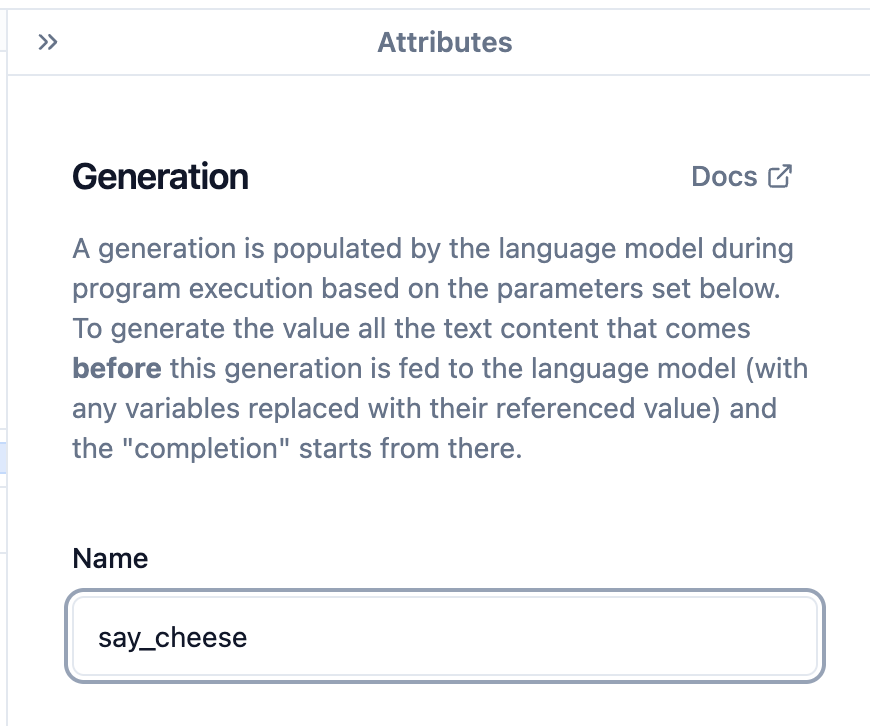 Or you can change it directly in the editor on the left hand side:
 #### AI Model
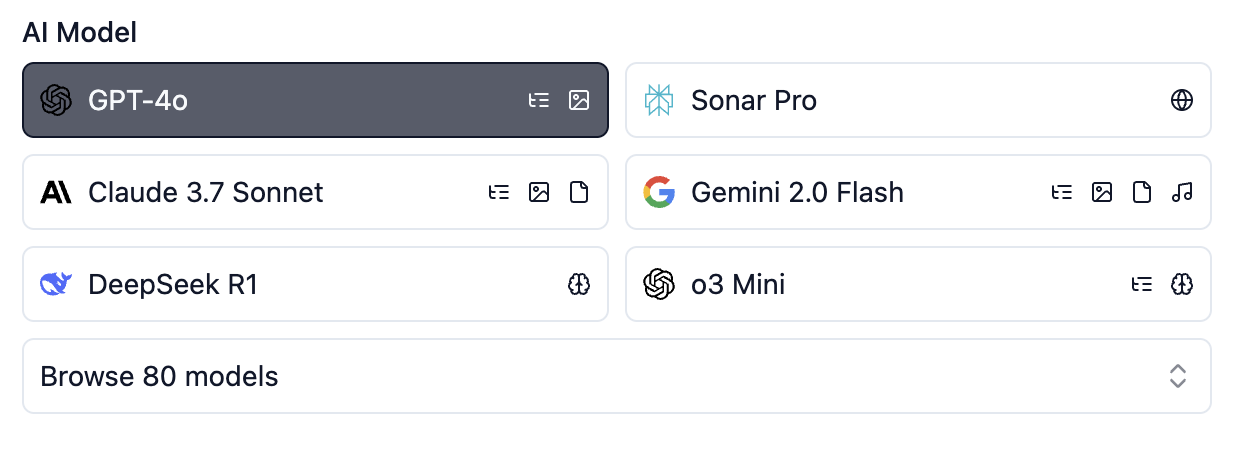
This lets you select which AI model you'd like to use. You can choose from a variety of models, each with its own strengths and weaknesses. There are a few featured models, but you can also browse the full range by clicking on the bottom button.
#### AI Model
This lets you select which AI model you'd like to use. You can choose from a variety of models, each with its own strengths and weaknesses. There are a few featured models, but you can also browse the full range by clicking on the bottom button.
 Here's a video where we go through some of the different model choices you can make.
See our dedicated [**model documentation**](https://www.notion.so/hey-daily/Models-615b76d7498f4e06ae522a329695da74) for our full list of supported models and their capabilities
####
Here's a video where we go through some of the different model choices you can make.
See our dedicated [**model documentation**](https://www.notion.so/hey-daily/Models-615b76d7498f4e06ae522a329695da74) for our full list of supported models and their capabilities
####
#### Creativity
 How creative the generation should be. A higher creativity level will produce more varied and interesting results, but is more likely to result in unexpected outputs.
As a rule of thumb, increase the creativity level if you're getting overly consistent or boring outputs, and decrease it if the outputs are too chaotic or nonsensical. Creative works like poetry or fiction often benefit from higher creativity, while logical or technical works like code or reports often benefit from lower creativity.
### Outputs
How creative the generation should be. A higher creativity level will produce more varied and interesting results, but is more likely to result in unexpected outputs.
As a rule of thumb, increase the creativity level if you're getting overly consistent or boring outputs, and decrease it if the outputs are too chaotic or nonsensical. Creative works like poetry or fiction often benefit from higher creativity, while logical or technical works like code or reports often benefit from lower creativity.
### Outputs
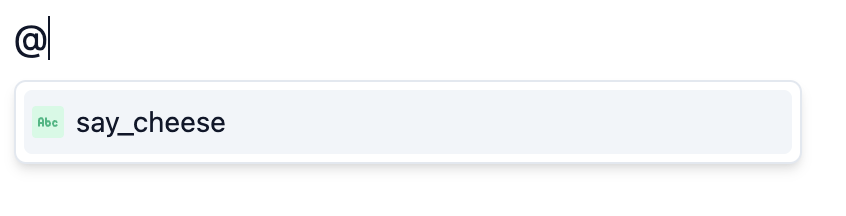 Generations produce a single output: the content generated by the model. You can reference this output in the editor with a [@\[name\_of\_generation\]](/nodes/mention) using the name of the generation specified.