> ## Documentation Index
> Fetch the complete documentation index at: https://docs.wordware.ai/llms.txt
> Use this file to discover all available pages before exploring further.
# If-Else
> Let your WordApp make decisions
## What does it do?
If-else nodes, as the name suggests, allow you to create conditional logic in your WordApp. This means you can make your
WordApp do different things based on the content it's generated so far, or the inputs it's received.
If-else nodes give WordApps the ability to make decisions, and sit at the heart of the intelligence AI provides. With Wordware,
you can trivially pass data back and forth between software and AI, leveraging whichever form of intelligence is best for each point
of your workflow.
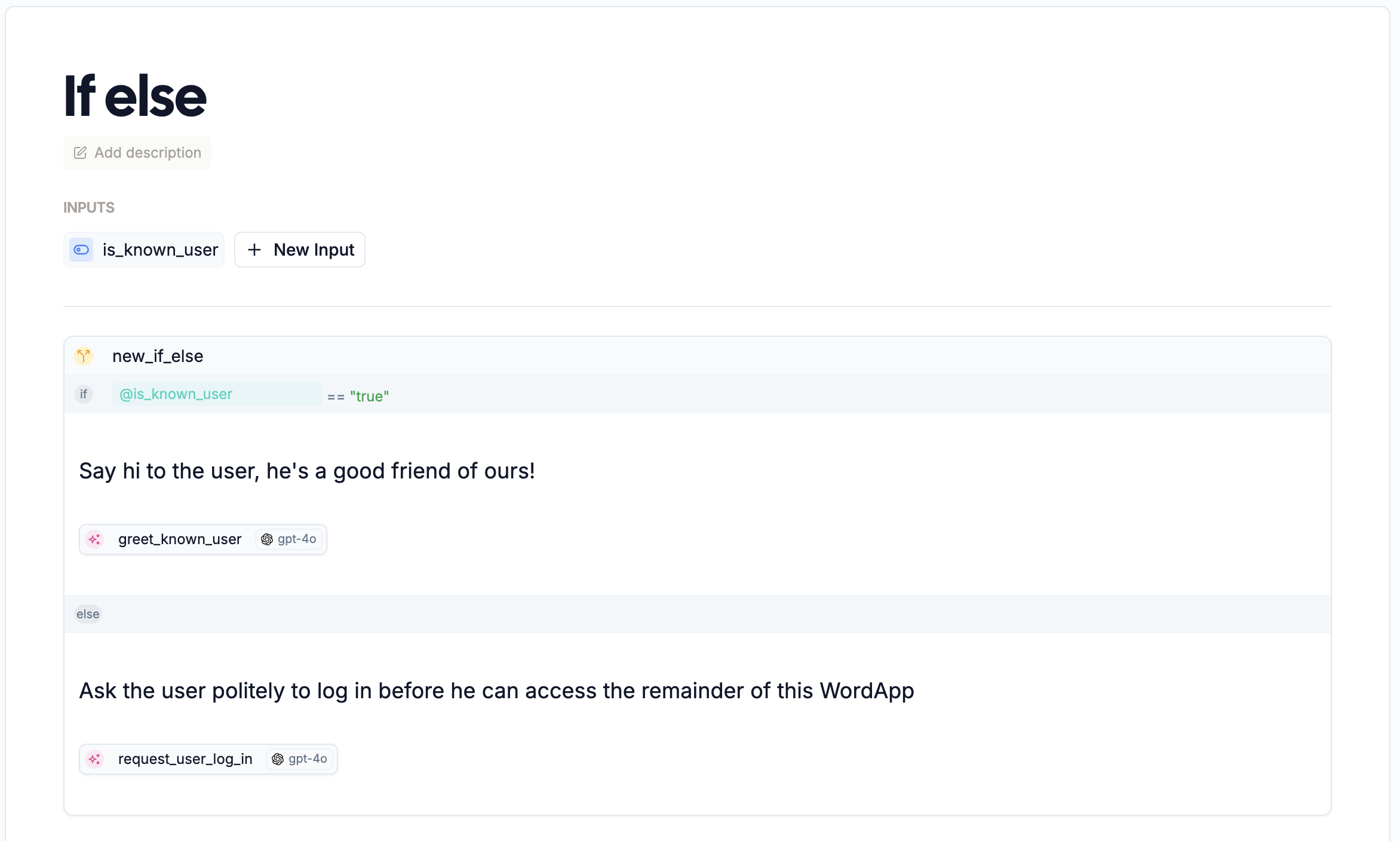 Did you know that WordApps are [Turing
complete](https://en.wikipedia.org/wiki/Turing_completeness)? The combination
of if-else nodes and [loop](/nodes/loop) nodes make WordApps capable of
carrying out any computation a computer can!
## How do I use it?
An if-else node is made up of a series of conditions, each with a corresponding action. When the node runs, it checks each condition in turn,
running the nodes inside the first section where the condition is true.
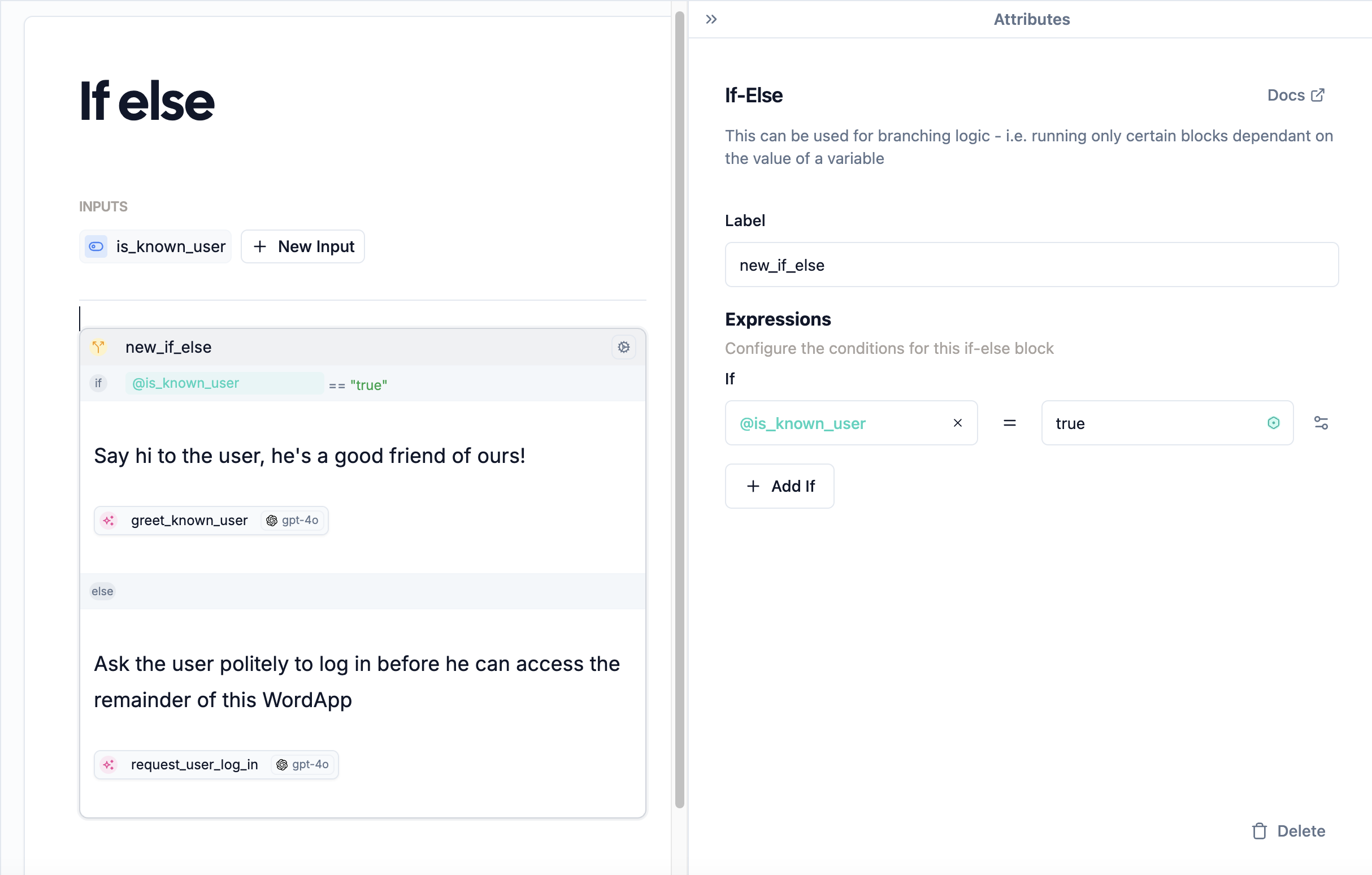
To create an if-else node, type `/if` in the editor, and hit `Enter`. You'll be prompted to fill in some details about the node, like its name, and the conditions and actions you want to include in the attributes editor.
Did you know that WordApps are [Turing
complete](https://en.wikipedia.org/wiki/Turing_completeness)? The combination
of if-else nodes and [loop](/nodes/loop) nodes make WordApps capable of
carrying out any computation a computer can!
## How do I use it?
An if-else node is made up of a series of conditions, each with a corresponding action. When the node runs, it checks each condition in turn,
running the nodes inside the first section where the condition is true.
To create an if-else node, type `/if` in the editor, and hit `Enter`. You'll be prompted to fill in some details about the node, like its name, and the conditions and actions you want to include in the attributes editor.
 ### Conditions
Conditions are set in the attributes editor under the **Expressions** section, with each condition (**IF**) having two slots for inputs, and three ways to compare them. You can access the ways to compare by clicking `=`, you will then have the following three options :
### Conditions
Conditions are set in the attributes editor under the **Expressions** section, with each condition (**IF**) having two slots for inputs, and three ways to compare them. You can access the ways to compare by clicking `=`, you will then have the following three options :
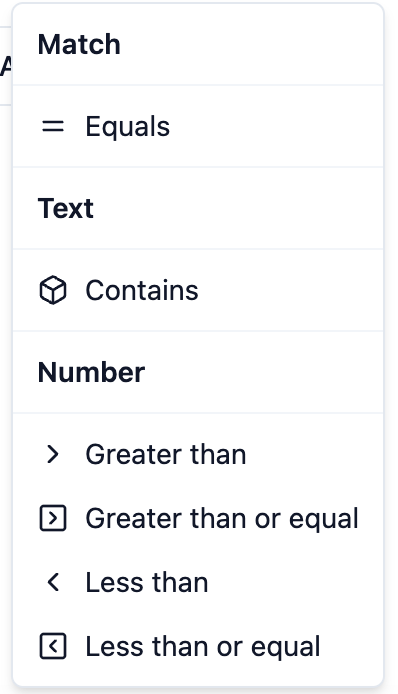 | Comparison | How it works |
| ---------- | -------------------------------------------------------------------------------------- |
| Match | Checks if the two values are equal |
| Text | Checks if the first value contains the second value |
| Number | Compares two numeric inputs, with sub-options for the comparison operator (e.g. >, \<) |
You can add as many conditions as you like with the `+ Add If`button below all the existing conditions. There's also an **ELSE** condition, which runs if none of the other conditions are true.
### Actions
Actions are set in the editor under the appropriate condition, allowing for generations, mentions, and any other
node types to be run depending on which condition is true.
The if-else example above, for example, works as follows:
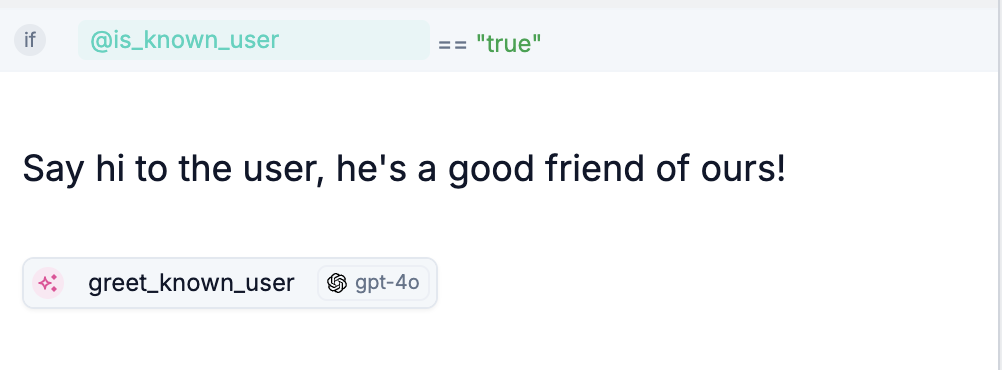
First, the **IF** condition checks if the `@is_known_user` mention is the
text "true". If so, the WordApp will run the nodes inside this section:
| Comparison | How it works |
| ---------- | -------------------------------------------------------------------------------------- |
| Match | Checks if the two values are equal |
| Text | Checks if the first value contains the second value |
| Number | Compares two numeric inputs, with sub-options for the comparison operator (e.g. >, \<) |
You can add as many conditions as you like with the `+ Add If`button below all the existing conditions. There's also an **ELSE** condition, which runs if none of the other conditions are true.
### Actions
Actions are set in the editor under the appropriate condition, allowing for generations, mentions, and any other
node types to be run depending on which condition is true.
The if-else example above, for example, works as follows:
First, the **IF** condition checks if the `@is_known_user` mention is the
text "true". If so, the WordApp will run the nodes inside this section:
 Then, if the above condition *is not met*, the WordApp will run the nodes
inside this section:
Then, if the above condition *is not met*, the WordApp will run the nodes
inside this section:
