> ## Documentation Index
> Fetch the complete documentation index at: https://docs.wordware.ai/llms.txt
> Use this file to discover all available pages before exploring further.
# Loop
> Make things happen, and then make them happen again
## What does it do?
Loops let you conditionally repeat parts of your WordApp. You can use them to create complex interactions, like asking
the user for input until they give you the right answer, or generating content until it meets a certain criteria.
Loops are a powerful tool for creating dynamic, interactive WordApps. They let you build complex logic into your WordApp,
and can help you create more engaging and useful experiences. They also let you take advantage of the full power of AI,
by allowing you to iterate on the content it generates. This pattern lives at the core of every agent.
We've got some examples of how to make the most of loops in our recipes, specifically the [chatbot](/recipes/chatbots)
recipe.
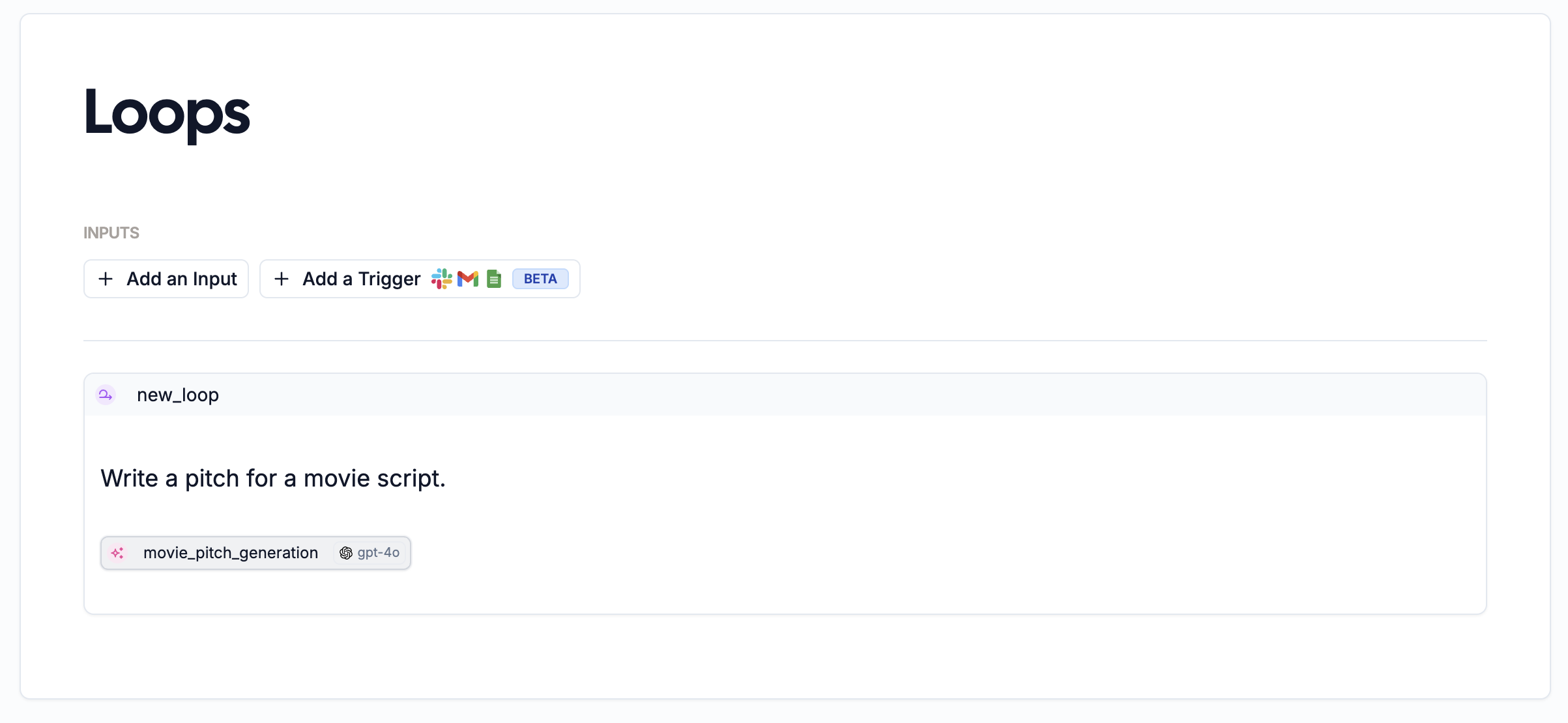 ## How do I use it?
A loop has two parts, a condition and an action. The condition determines how long to repeat the action, and the action
is what you want to repeat.
To create a loop, type `/loop` in the editor, and hit `Enter`. You'll be prompted to fill in a name and the condition
and action for the loop.
## How do I use it?
A loop has two parts, a condition and an action. The condition determines how long to repeat the action, and the action
is what you want to repeat.
To create a loop, type `/loop` in the editor, and hit `Enter`. You'll be prompted to fill in a name and the condition
and action for the loop.
 ### Options
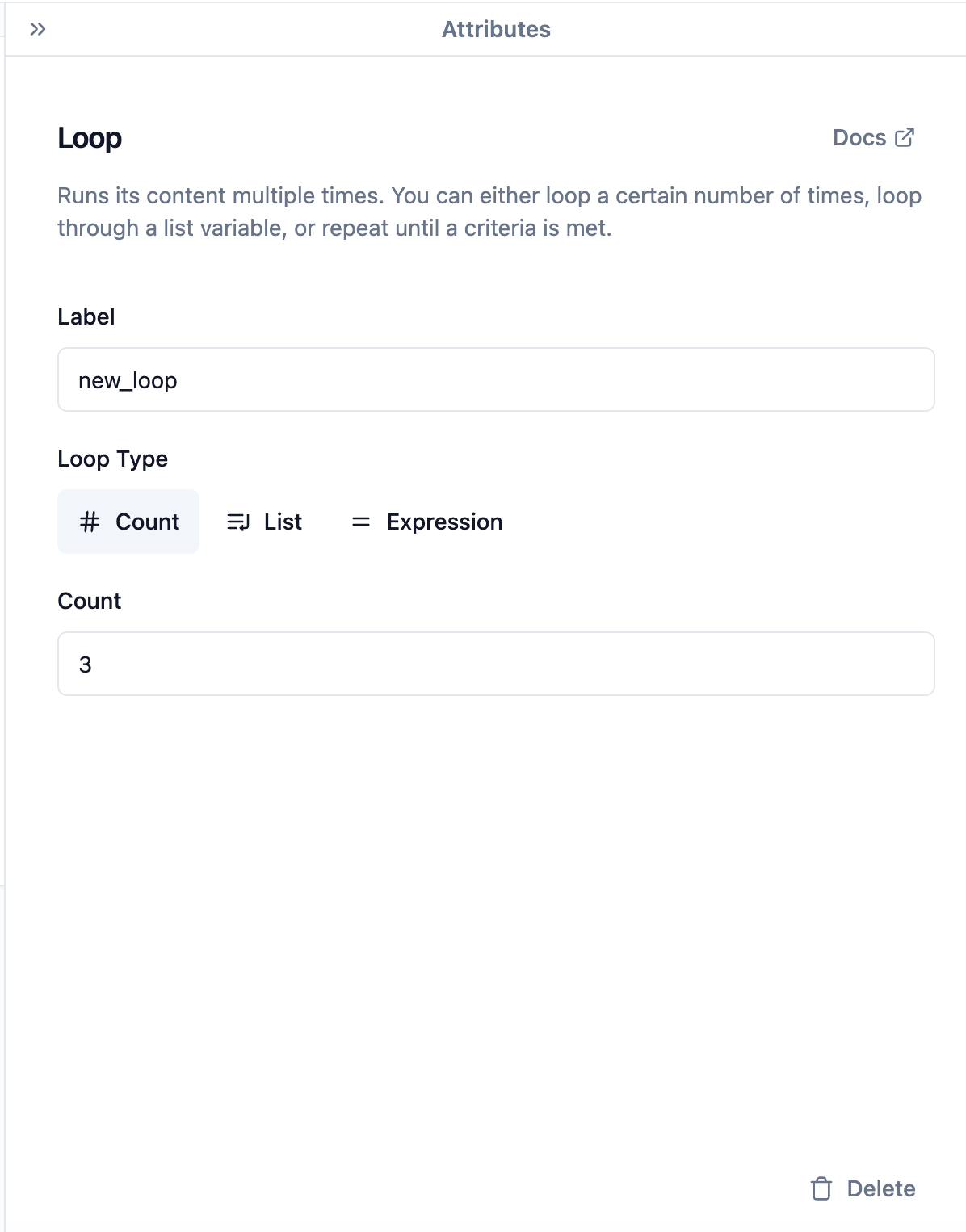
A number of options appear in the attributes editor when you create a loop. Here's what they mean:
#### Label
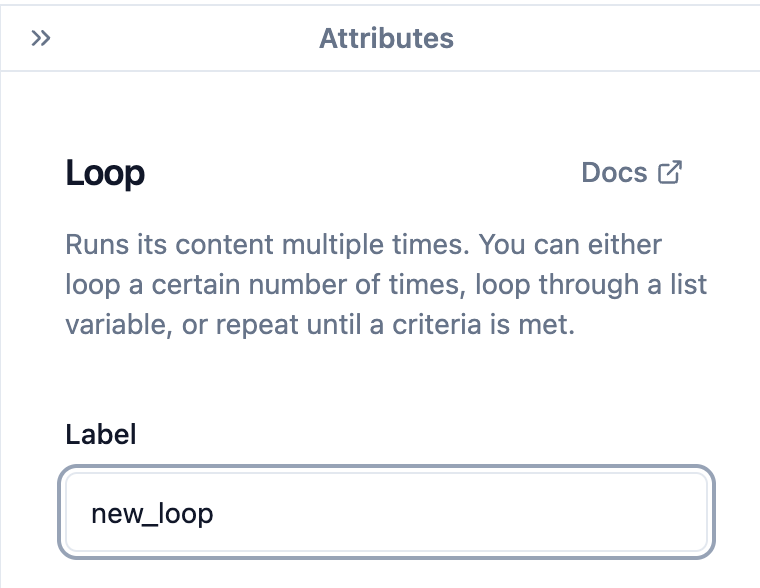
The name of the loop. You'll need this later if you want to [@mention](/nodes/mention) the output of the loop.
As with a generation, this can be edited in the attributes editor:
### Options
A number of options appear in the attributes editor when you create a loop. Here's what they mean:
#### Label
The name of the loop. You'll need this later if you want to [@mention](/nodes/mention) the output of the loop.
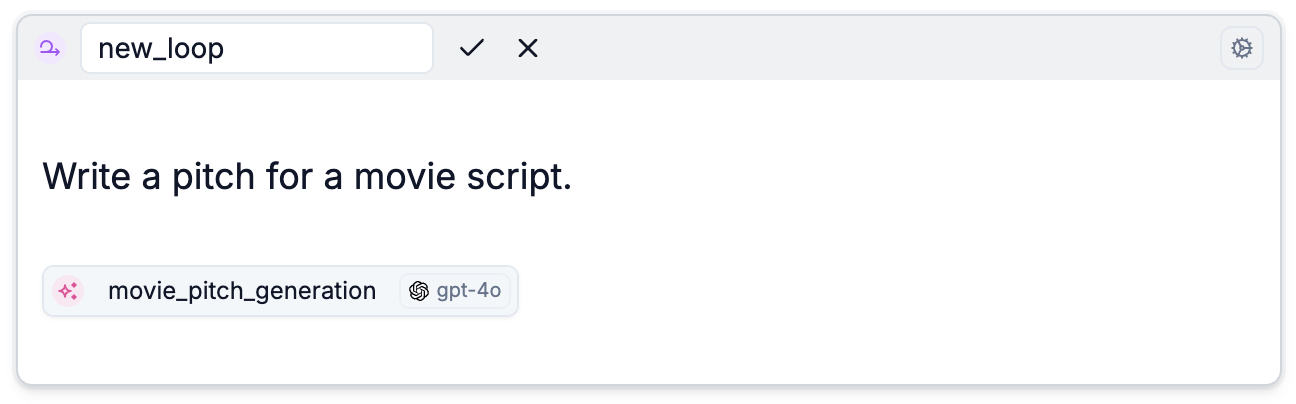
As with a generation, this can be edited in the attributes editor:
 Or in the main editor:
 #### Loop Type
There are three types of condition you can use to determine when to stop the loop:
#### Loop Type
There are three types of condition you can use to determine when to stop the loop:
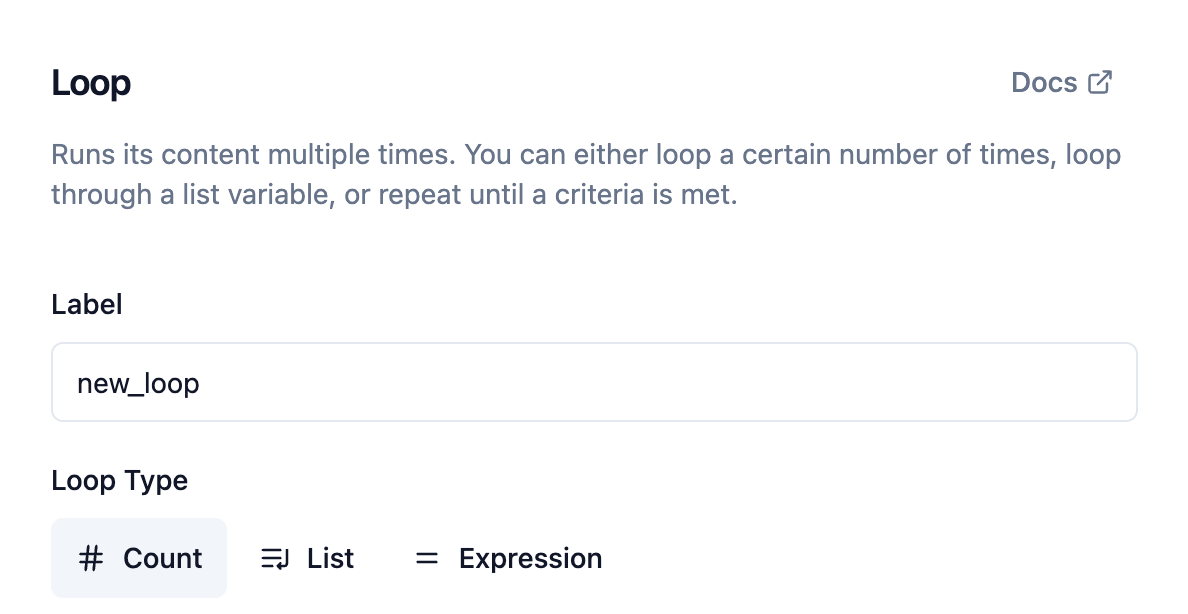 | Condition type | How it works |
| -------------- | ------------------------------------------------------------------------------------------ |
| Count | Stops after a fixed number of iterations |
| List | Loops once for every element in a list, giving the action each such element, one at a time |
| Expression | Choose a condition when the loop should stop repeating, e.g. `@user_input` `=` `"done"` |
### Outputs
Loops produce a list-type output, containing all the outputs produced from the action of the loop.
| Condition type | How it works |
| -------------- | ------------------------------------------------------------------------------------------ |
| Count | Stops after a fixed number of iterations |
| List | Loops once for every element in a list, giving the action each such element, one at a time |
| Expression | Choose a condition when the loop should stop repeating, e.g. `@user_input` `=` `"done"` |
### Outputs
Loops produce a list-type output, containing all the outputs produced from the action of the loop.