> ## Documentation Index
> Fetch the complete documentation index at: https://docs.wordware.ai/llms.txt
> Use this file to discover all available pages before exploring further.
# Parsing a PDF
> Add the context of a PDF to your prompt
 With Wordware, tasks that would take software engineers hours or days can be done in minutes. In this recipe, we'll
show you how to add a file input, upload a PDF, and how to interact with it in only 5 simple steps, no coding required.
## Steps
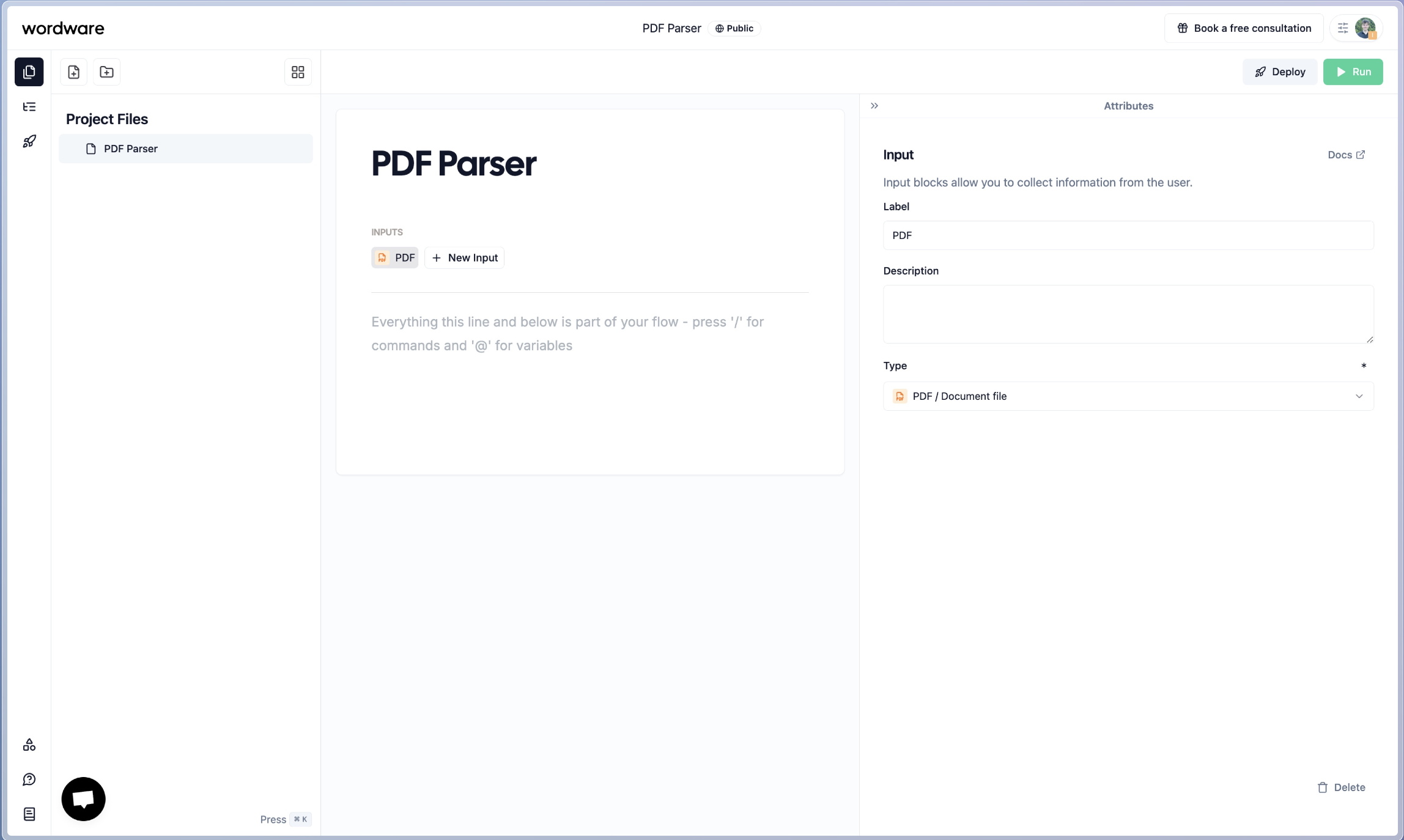
Start by creating a new Input. Select Input type "PDF / Document File". Don't forget to give your input a name for clarity! I called mine PDF, but it could also make sense to indicate what it is, like "resume" or "report".
With Wordware, tasks that would take software engineers hours or days can be done in minutes. In this recipe, we'll
show you how to add a file input, upload a PDF, and how to interact with it in only 5 simple steps, no coding required.
## Steps
Start by creating a new Input. Select Input type "PDF / Document File". Don't forget to give your input a name for clarity! I called mine PDF, but it could also make sense to indicate what it is, like "resume" or "report".
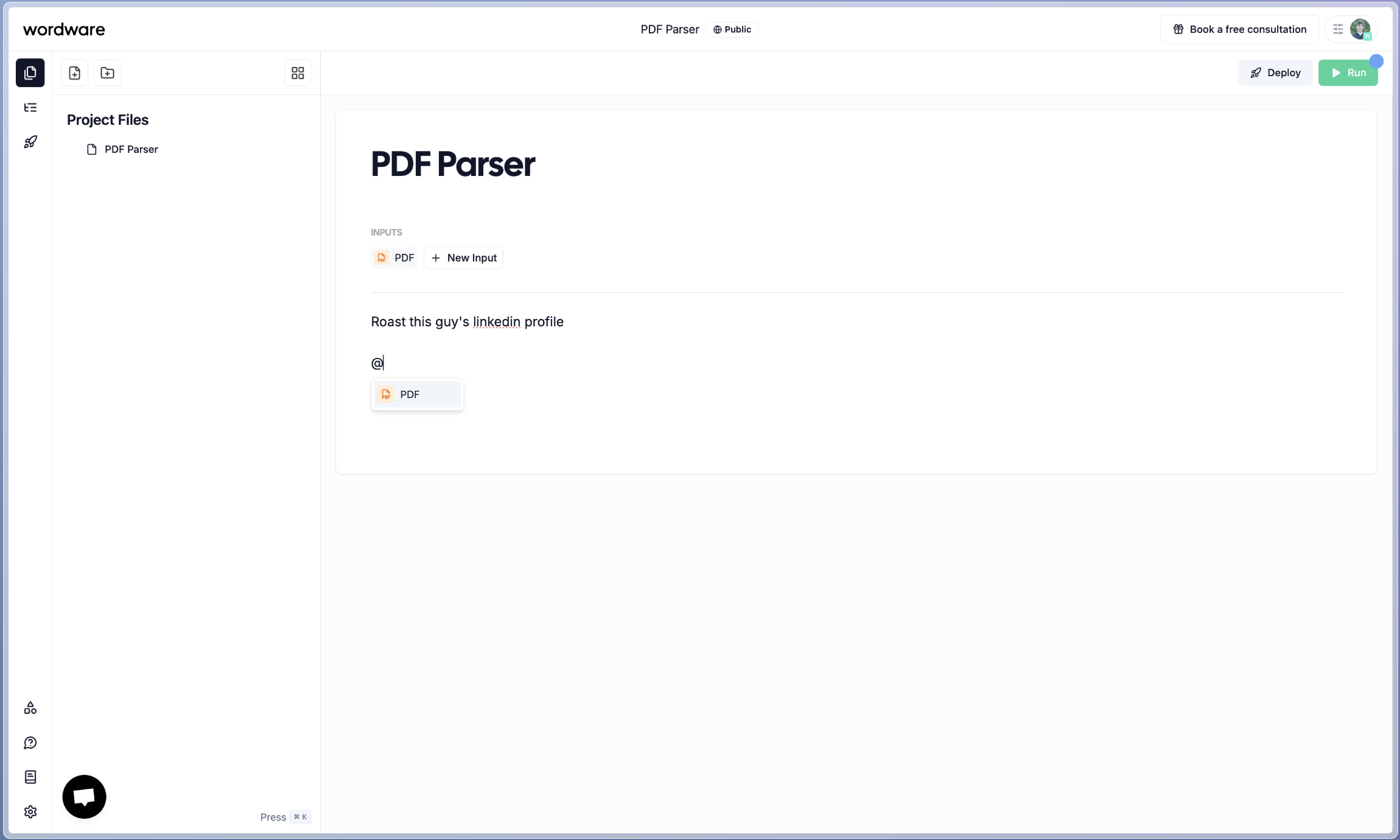
 In the editor, type `@` to bring up the mention options, and select the PDF Input you just created.
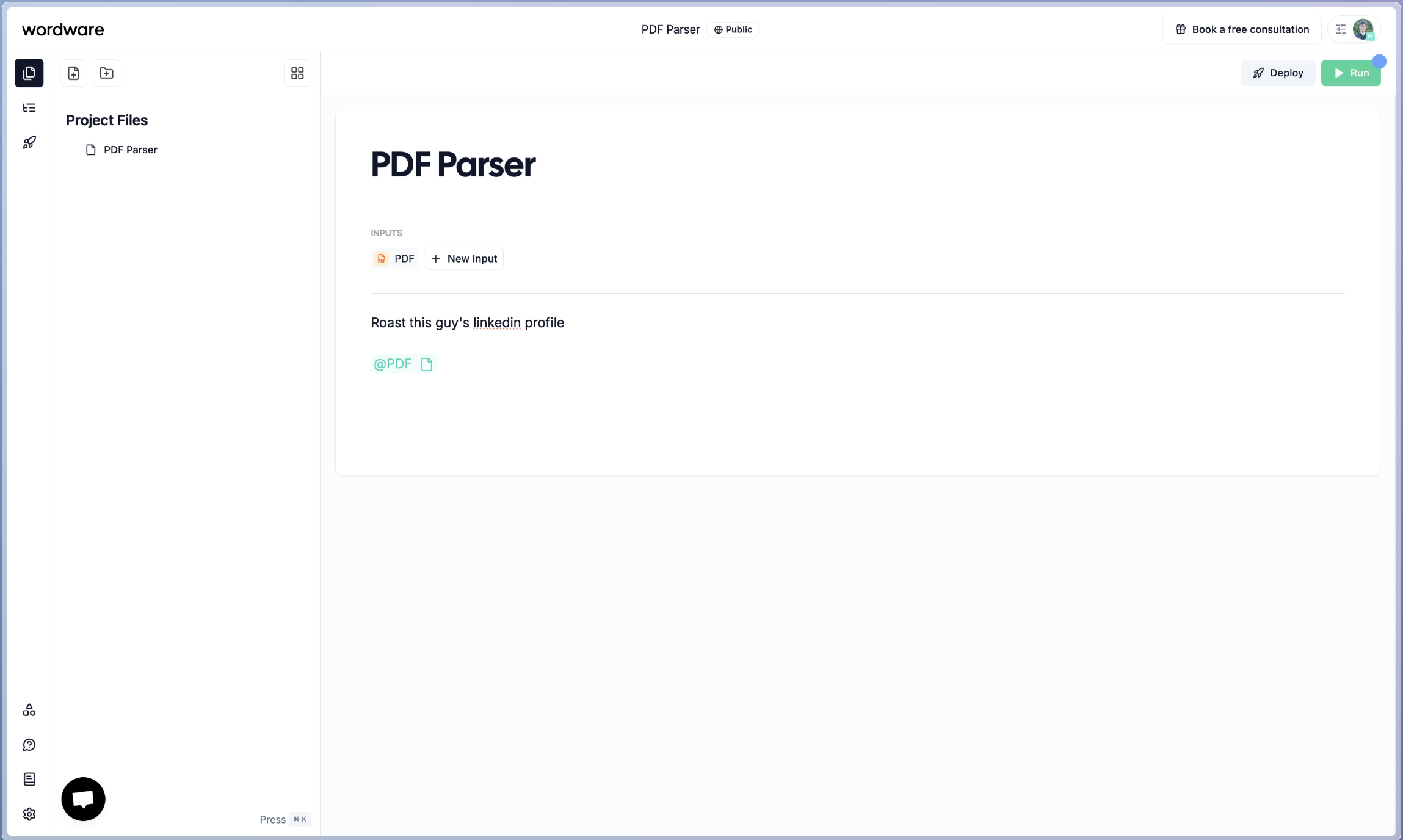
 Now any generation after this PDF will automatically include the PDF as context.
 If you haven't already, add an instruction to the flow. And then add a new generation node by typing `/generation` in the editor.
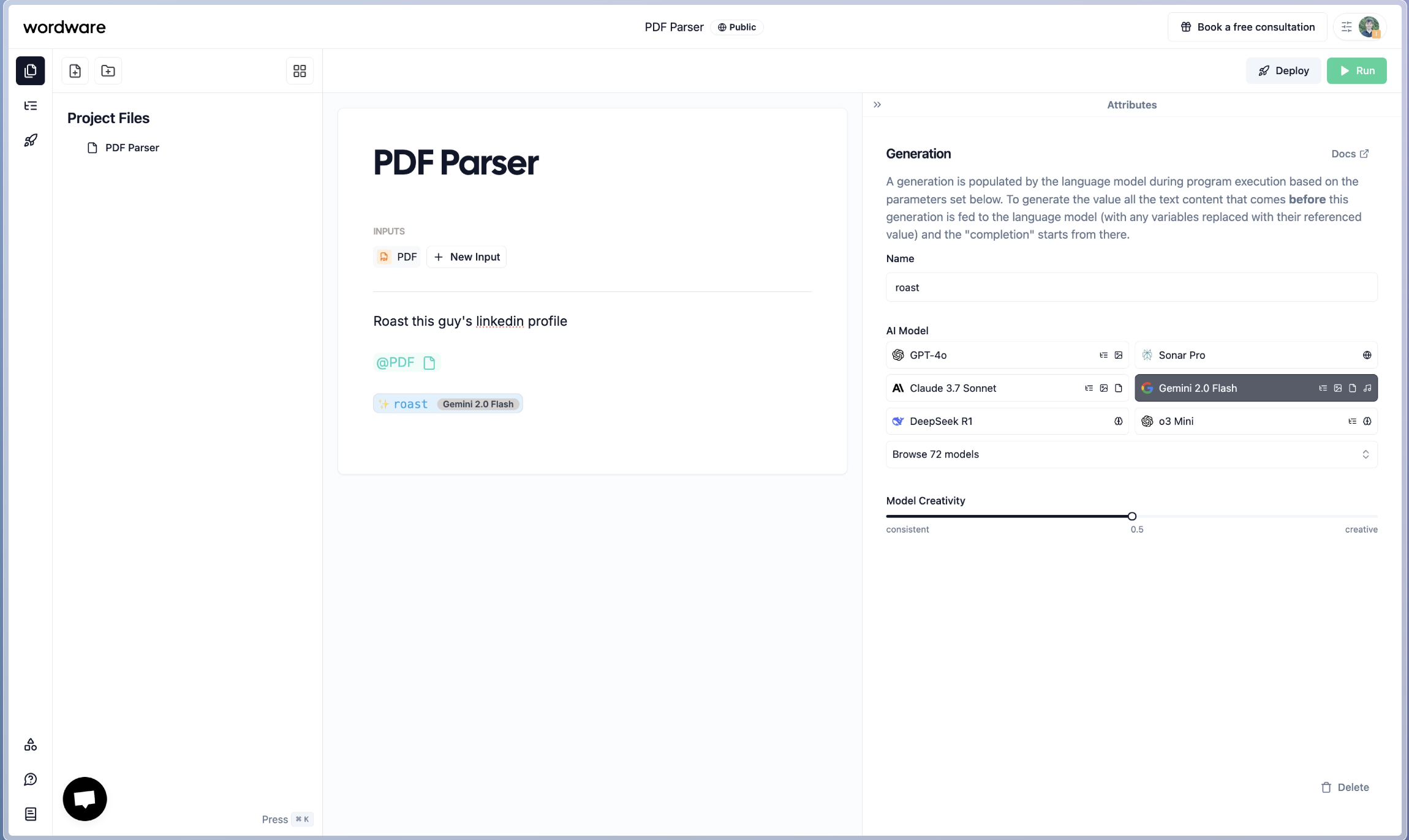 We recommend using a model that accepts PDF's natively, like the Gemini Models or Sonnet 3.5/3.7. You can filter by PDF capabilities in the model selector. All models work, but these tend to perform better.
If you press run the sidebar will open up and you can select the PDF you want to run the flow with.
We recommend using a model that accepts PDF's natively, like the Gemini Models or Sonnet 3.5/3.7. You can filter by PDF capabilities in the model selector. All models work, but these tend to perform better.
If you press run the sidebar will open up and you can select the PDF you want to run the flow with.
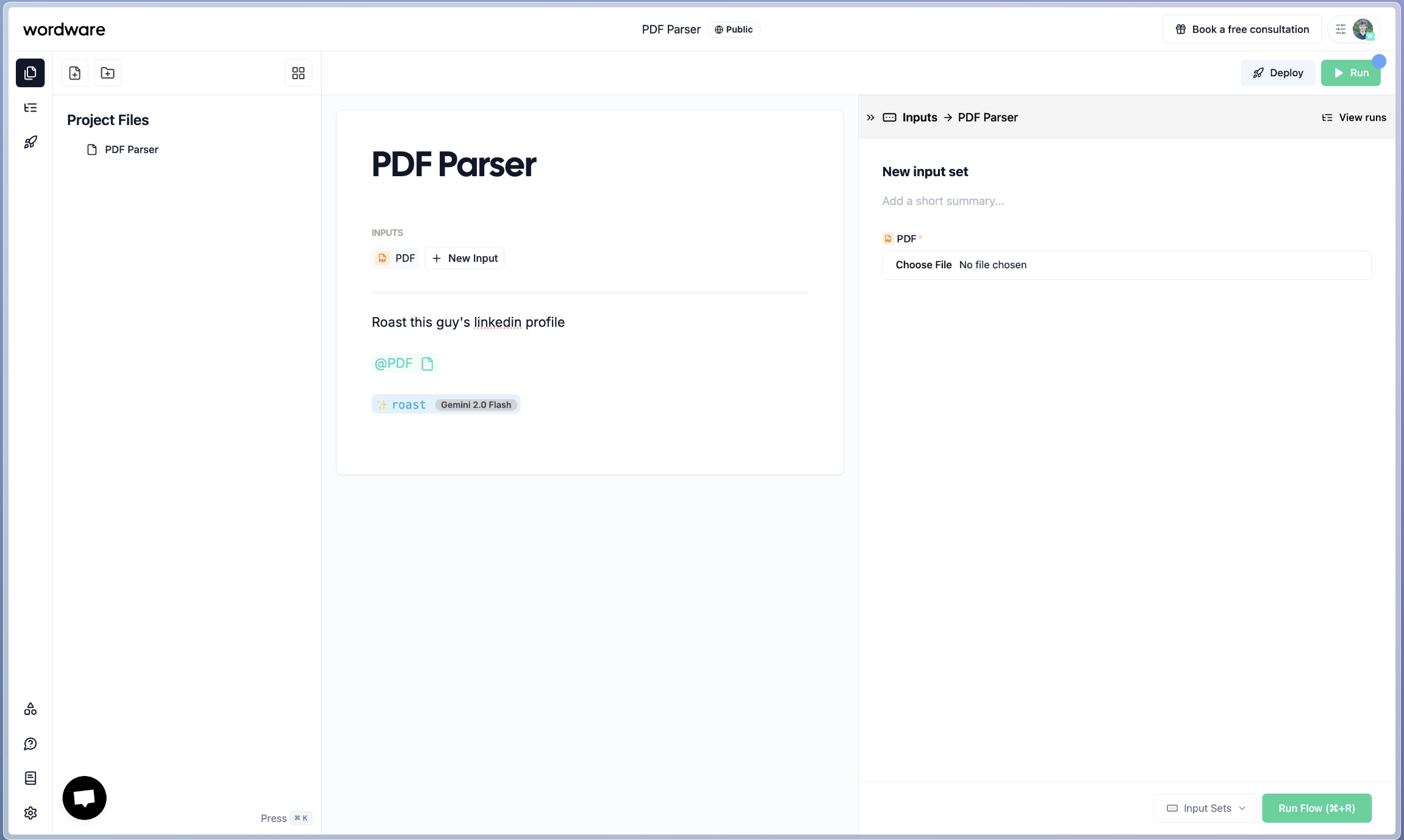 Select your desired PDF
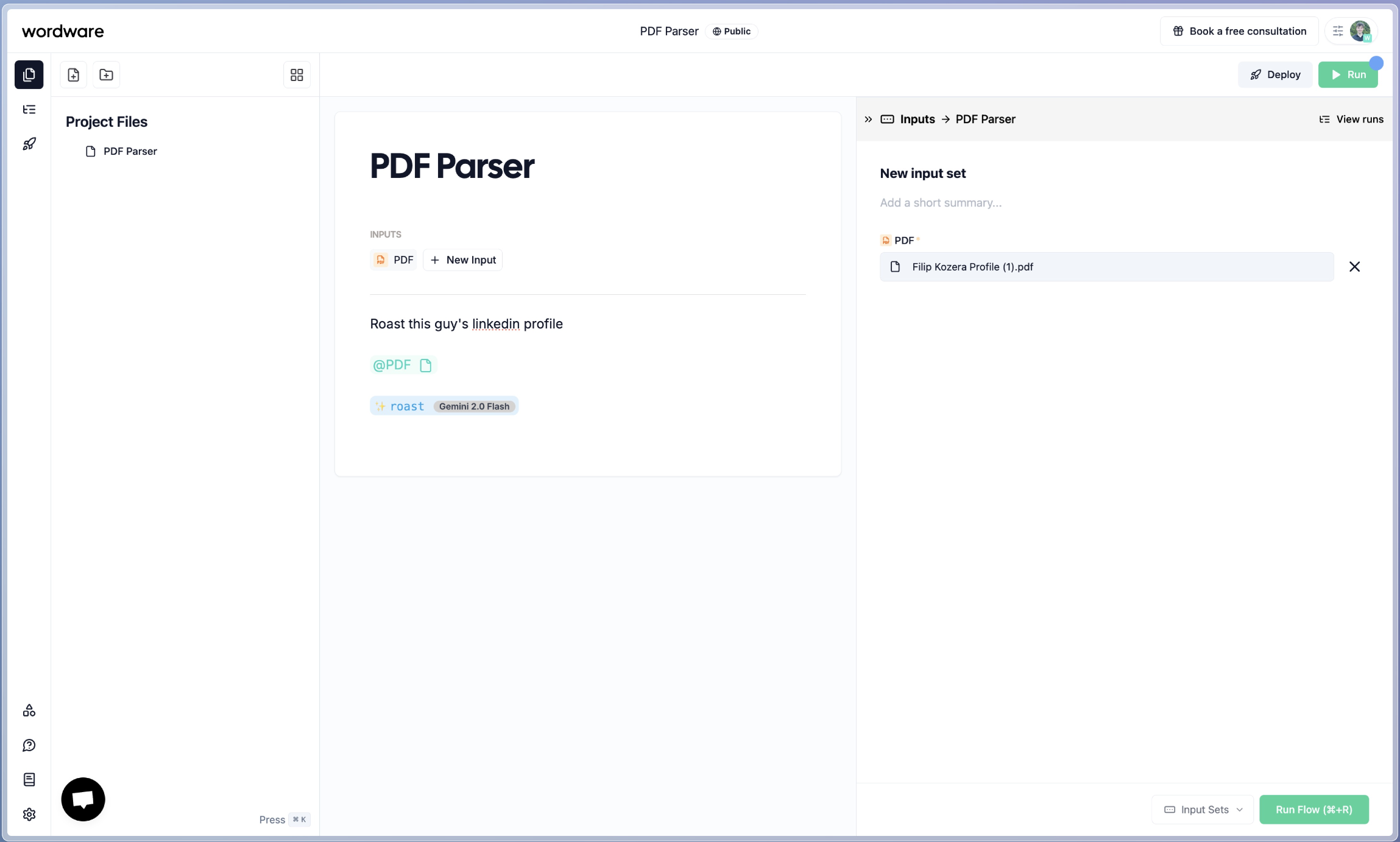 And now you are ready to run the flow!
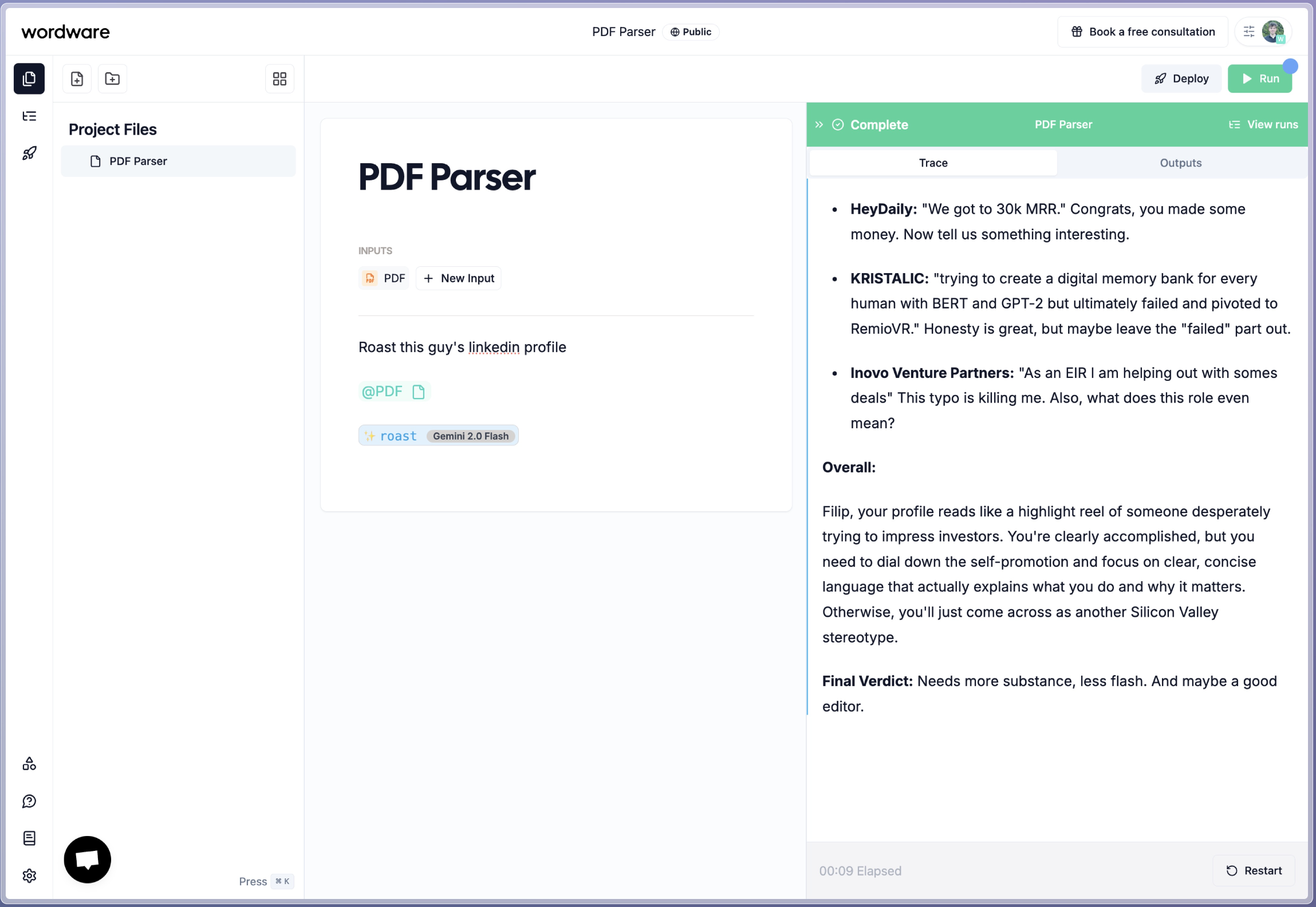
Now just run the flow and after a few seconds the model will start streaming the output based on the PDF you added.
And now you are ready to run the flow!
Now just run the flow and after a few seconds the model will start streaming the output based on the PDF you added.
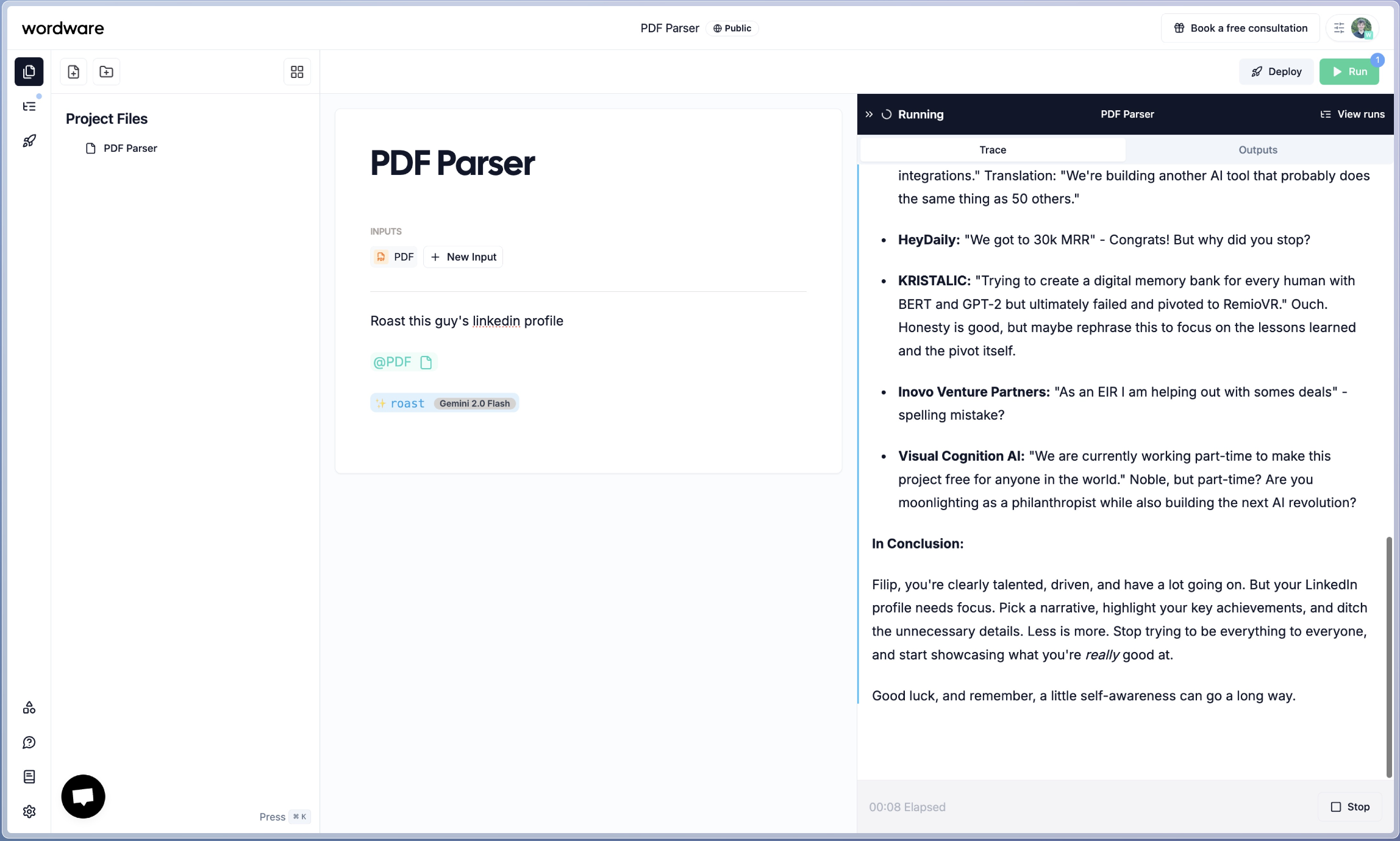 It is that easy!