> ## Documentation Index
> Fetch the complete documentation index at: https://docs.wordware.ai/llms.txt
> Use this file to discover all available pages before exploring further.
# Tour
> Let's take a look around
## It's all about the prompt
Wordware makes it almost effortless to build and maintain powerful agents. At its heart, these features are built
around the concept of a prompt. A prompt is a piece of text, image, audio, and soon video that you provide to
the AI to generate content. It can be as simple as a single sentence or as complex as an exported database,
complete with illustrations.
In Wordware, the way you edit and manage prompts is through the editor. The editor is where you can build, test,
collaborate on and deploy your prompts, and the logic that surrounds them.
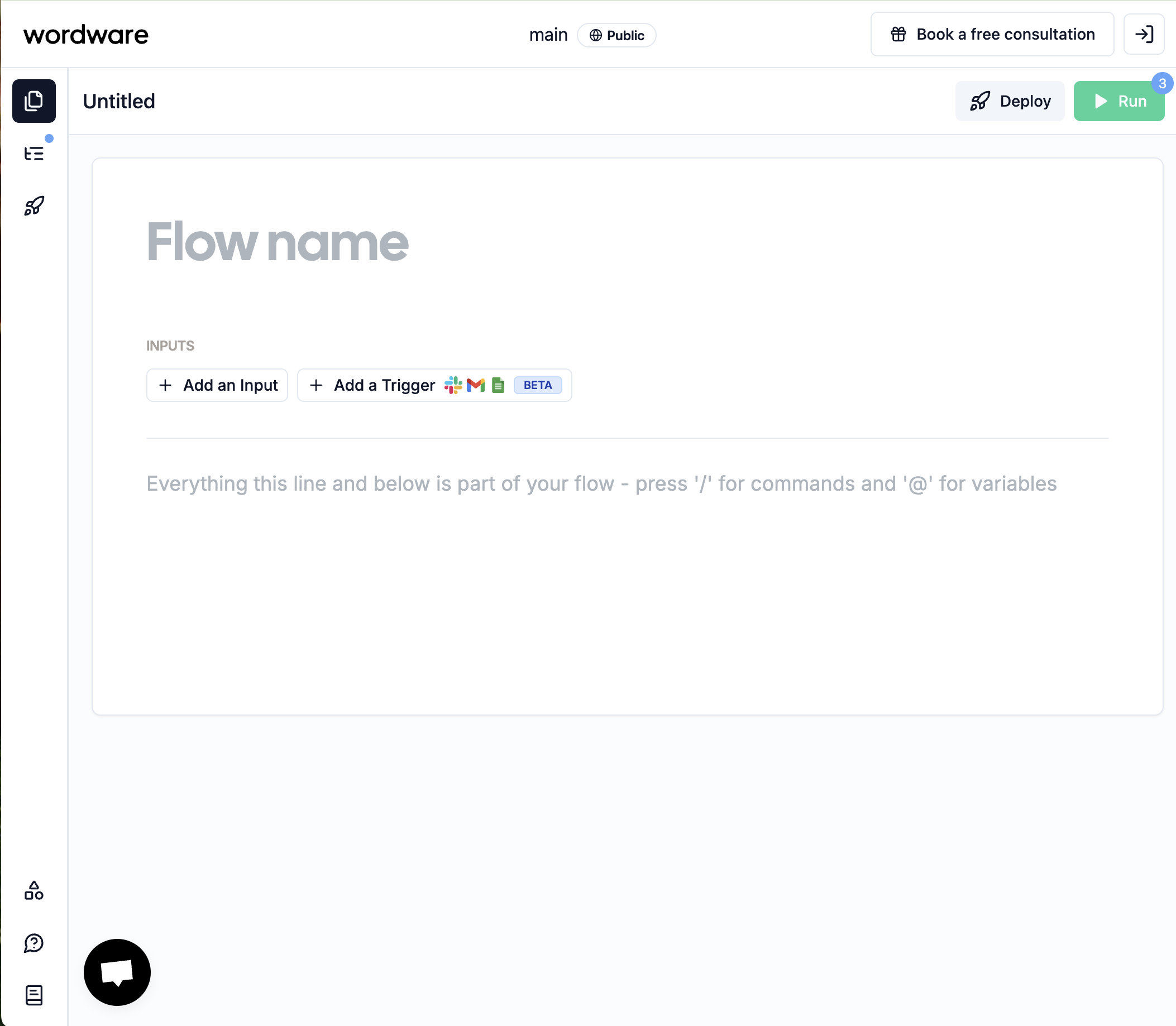 Front and center is the flow pane, where you can see the flow you're currently working on. Flows are Wordware's way of
making it easy to keep track of your projects, one piece at a time. Small projects can be managed in a single flow, while
larger ones may benefit from breaking things up into multiple flows.
Each flow is both your documentation and your program, and you can run it just like code with the `Run` button to the
top right or the keyboard shortcut `CTRL` + `R` (on Mac, `CMD` + `R`). Each flow can have any number of different steps,
whether AI generation, loop, or any of the many other nodes available in Wordware. You can even have your flow call
other flows! Add new nodes by typing `/` in the editor, and typing the name of the node you want to add. For text, you
can just start typing.
Let's add a basic prompt to get started.
## Using the editor
Anything you type into the editor is a prompt. You can add an almost unlimited amount of content of many forms, and
barring very few exceptions, the AI for any [generation](/nodes/generation) will be able to see and interact with any
content that appears above the generation in the flow. This is the "What You See is What You Get" principle in action.
There are a small number of exceptions to the "What You See is What You Get"
principle. Most notably, [comments](/nodes/comment) are hidden to the AI, and
to your deployed app if you decide to deploy your flow.
This content is divided into nodes, which are run in the order they appear in the flow. Top to bottom, left to right.
Some nodes can contain other nodes, like [if-else](/nodes/if-else) and [loop](/nodes/loop) nodes, which can contain
multiple branches of content. They'll still be run from top to bottom, skipping any branches that don't meet the
conditions, and repeating any branches you want to repeat.
### Running your flow
When you're ready to execute, hit the "Run" button. You can watch live as the WordApp you wrote runs step by step,
prompting you for any inputs you've defined, and showing you the outputs as they're generated. You can see the AI's
responses in real time, and even interact with the AI as it generates content.
## The Navigation Bar
Front and center is the flow pane, where you can see the flow you're currently working on. Flows are Wordware's way of
making it easy to keep track of your projects, one piece at a time. Small projects can be managed in a single flow, while
larger ones may benefit from breaking things up into multiple flows.
Each flow is both your documentation and your program, and you can run it just like code with the `Run` button to the
top right or the keyboard shortcut `CTRL` + `R` (on Mac, `CMD` + `R`). Each flow can have any number of different steps,
whether AI generation, loop, or any of the many other nodes available in Wordware. You can even have your flow call
other flows! Add new nodes by typing `/` in the editor, and typing the name of the node you want to add. For text, you
can just start typing.
Let's add a basic prompt to get started.
## Using the editor
Anything you type into the editor is a prompt. You can add an almost unlimited amount of content of many forms, and
barring very few exceptions, the AI for any [generation](/nodes/generation) will be able to see and interact with any
content that appears above the generation in the flow. This is the "What You See is What You Get" principle in action.
There are a small number of exceptions to the "What You See is What You Get"
principle. Most notably, [comments](/nodes/comment) are hidden to the AI, and
to your deployed app if you decide to deploy your flow.
This content is divided into nodes, which are run in the order they appear in the flow. Top to bottom, left to right.
Some nodes can contain other nodes, like [if-else](/nodes/if-else) and [loop](/nodes/loop) nodes, which can contain
multiple branches of content. They'll still be run from top to bottom, skipping any branches that don't meet the
conditions, and repeating any branches you want to repeat.
### Running your flow
When you're ready to execute, hit the "Run" button. You can watch live as the WordApp you wrote runs step by step,
prompting you for any inputs you've defined, and showing you the outputs as they're generated. You can see the AI's
responses in real time, and even interact with the AI as it generates content.
## The Navigation Bar
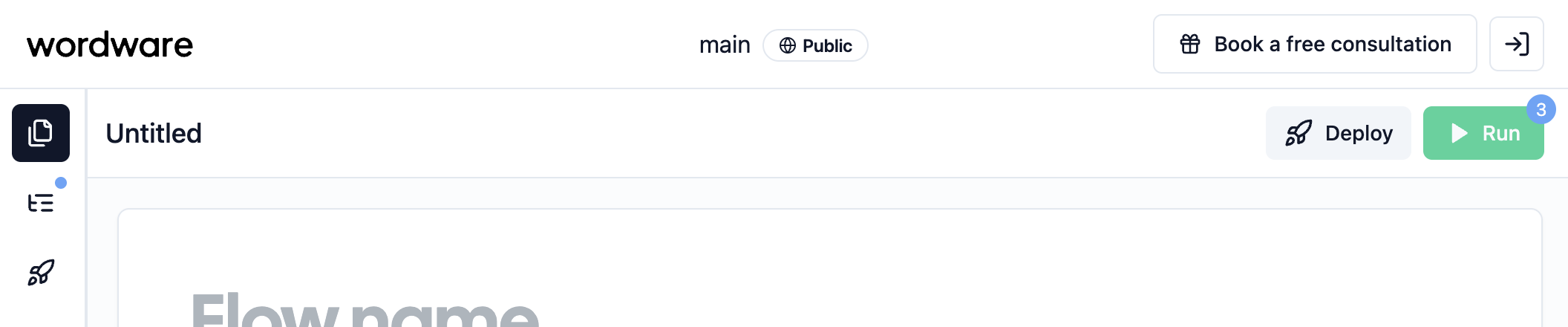 Wordware is a powerful tool, and there are many ways to use it. For a quick start, check out our [recipes](/recipes).
Otherwise, press the `files`button at the far left of the navigation bar.
Wordware is a powerful tool, and there are many ways to use it. For a quick start, check out our [recipes](/recipes).
Otherwise, press the `files`button at the far left of the navigation bar.
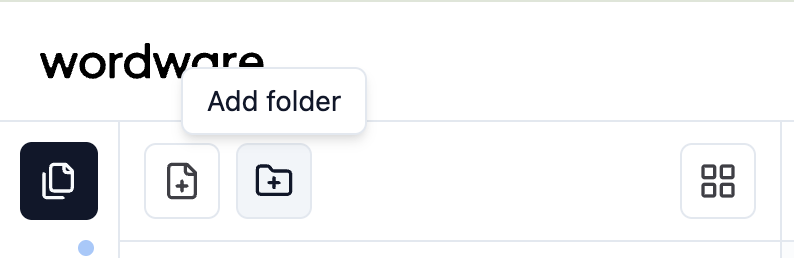
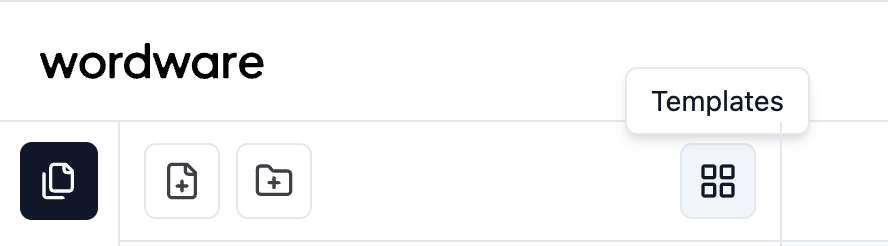
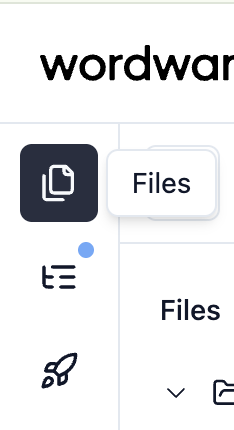 Once you've pressed files, you will see three buttons appear in the new side pane. This is where all your new flows live. This is also where you can create new flows with the `New flow` button, and manage your existing ones. You can duplicate, rename, and delete flows as you see fit to best organize your projects. You can also create folders to better organize your flows by pressing the `add folder` button.
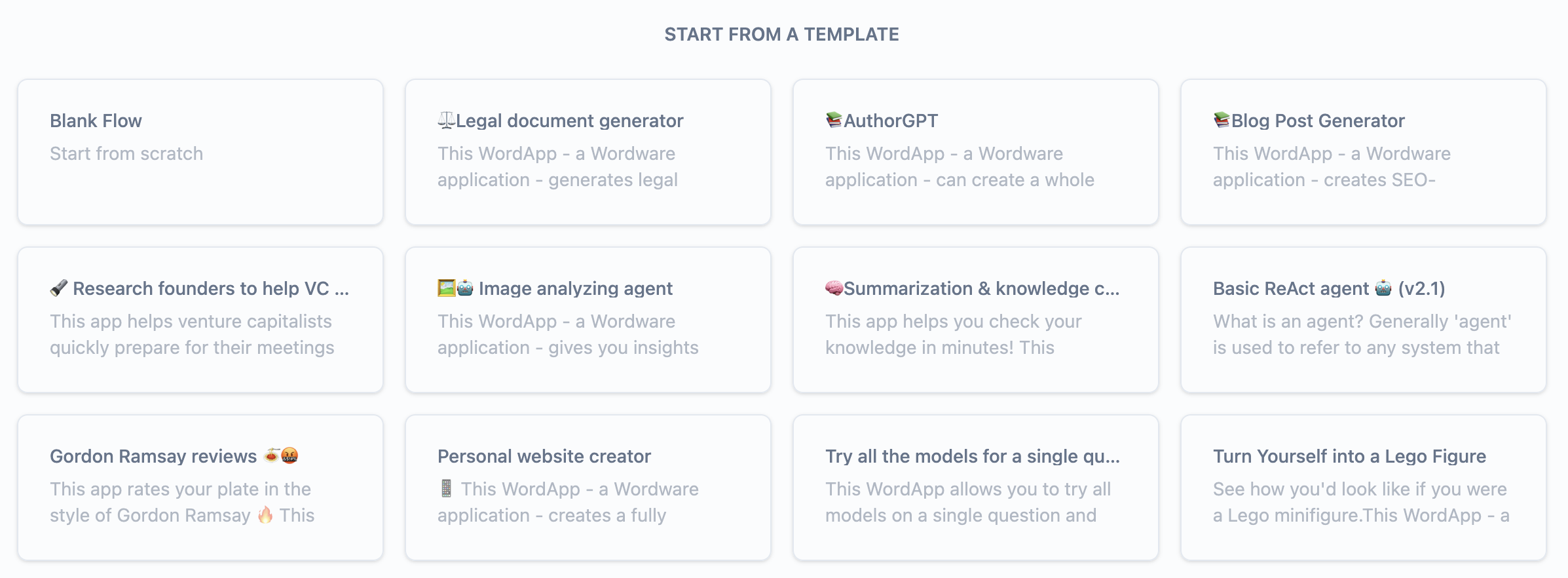
 Finally, you can press the `templates` button to access some pre-populated WordApps.
 To the right, you'll find the `Run` button for executing your prompts, as well as sharing controls. Wordware is better
with friends, and you can share your prompts with anyone you like, or even embed them in your own website or app. To
make collaboration easy, you can add additional users to your organizations, and work together on the same prompts. You
can also share your prompts publicly, to collaborate with anyone anywhere.
To the right, you'll find the `Run` button for executing your prompts, as well as sharing controls. Wordware is better
with friends, and you can share your prompts with anyone you like, or even embed them in your own website or app. To
make collaboration easy, you can add additional users to your organizations, and work together on the same prompts. You
can also share your prompts publicly, to collaborate with anyone anywhere.
 By default, prompts on a free account are public, but paid users can make them private at any time by clicking the lock
icon toward the right side of the navigation bar. This will make your prompt visible only to you and anyone you've
added to your organization.
Finally, you can publish your flow as a standalone WordApp, which you can share with anyone, anywhere. Simply click the `🚀 Deploy` button and fill out the requested fields. This is a great way to deploy your projects as standalone applications, or to share them with the world.
## Check these out next
Here are some next steps you may want to take to get the most out of Wordware:
Walk through a simple chatbot recipe to accomplish your goals with Wordware
Add custom JavaScript or Python code to your WordApp to do anything you can imagine.
Book a call with one of our experts to get a personalized walkthrough of Wordware.
See how generations enable you to accomplish most anything you can imagine.
By default, prompts on a free account are public, but paid users can make them private at any time by clicking the lock
icon toward the right side of the navigation bar. This will make your prompt visible only to you and anyone you've
added to your organization.
Finally, you can publish your flow as a standalone WordApp, which you can share with anyone, anywhere. Simply click the `🚀 Deploy` button and fill out the requested fields. This is a great way to deploy your projects as standalone applications, or to share them with the world.
## Check these out next
Here are some next steps you may want to take to get the most out of Wordware:
Walk through a simple chatbot recipe to accomplish your goals with Wordware
Add custom JavaScript or Python code to your WordApp to do anything you can imagine.
Book a call with one of our experts to get a personalized walkthrough of Wordware.
See how generations enable you to accomplish most anything you can imagine.