> ## Documentation Index
> Fetch the complete documentation index at: https://docs.wordware.ai/llms.txt
> Use this file to discover all available pages before exploring further.
# Workflows
> Turn your WordApps into workflows using our powerful Zapier integration
## Get an API Key
Navigate to the settings page by clicking the user avatar in the top right corner and selecting "API Keys"
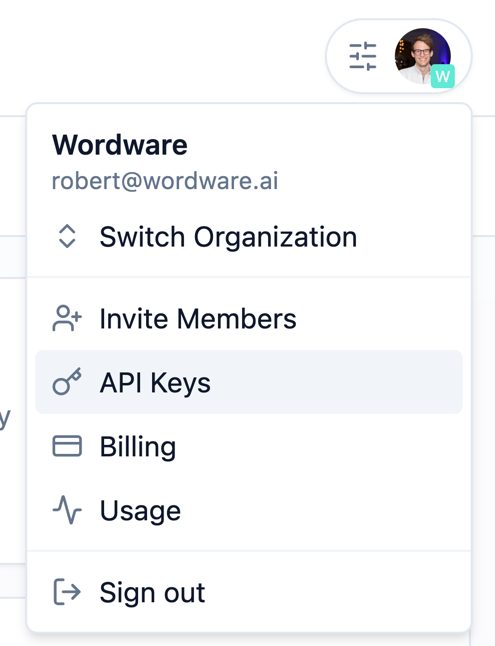 From here you can generate a new API key.
## Create the workflow
After you've [published an app](/deploy), you can create the workflow.
Navigate to the "Workflows" tab in your app's "Deployments" page.
From here you can generate a new API key.
## Create the workflow
After you've [published an app](/deploy), you can create the workflow.
Navigate to the "Workflows" tab in your app's "Deployments" page.
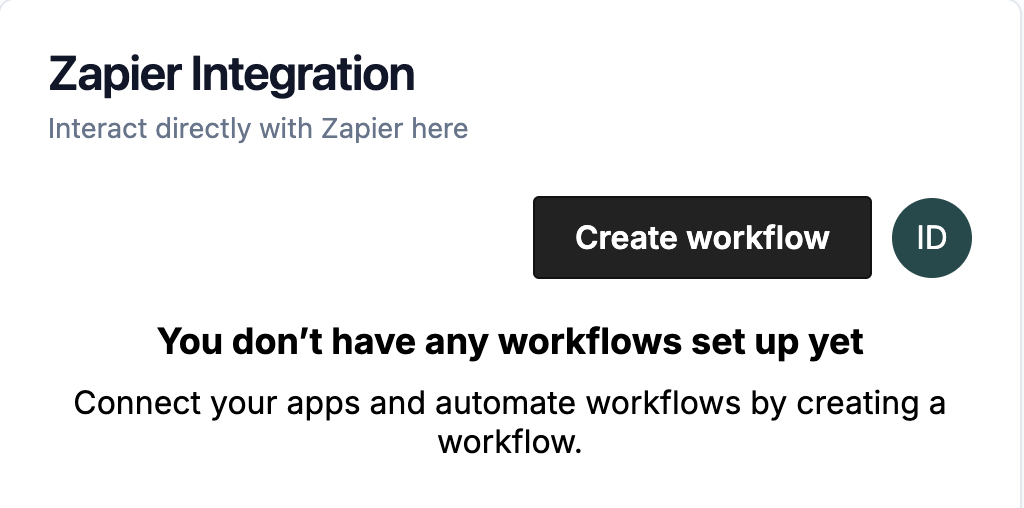
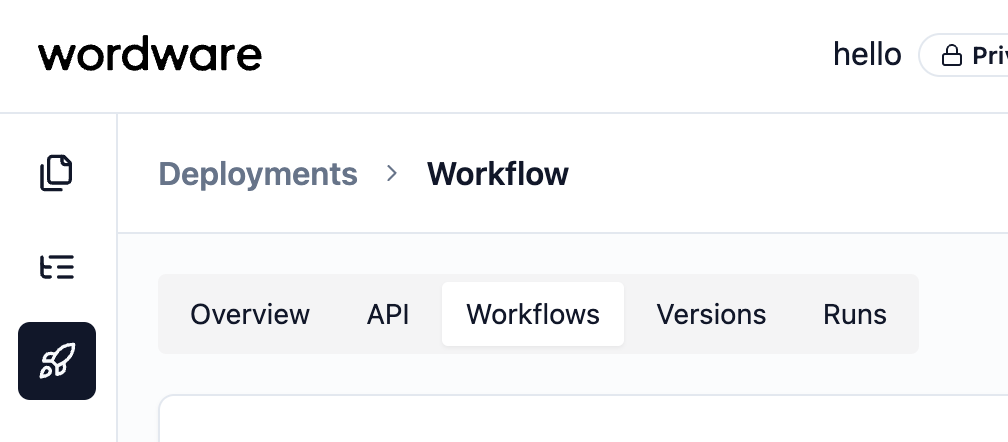 Now you can create a new workflow by clicking the "New Workflow" button.
 ## Configure the trigger
This will open the integrated Zapier editor where you can build any workflow that can be built with Zapier.
First, open the trigger menu to select the trigger you want to start the workflow.
## Configure the trigger
This will open the integrated Zapier editor where you can build any workflow that can be built with Zapier.
First, open the trigger menu to select the trigger you want to start the workflow.
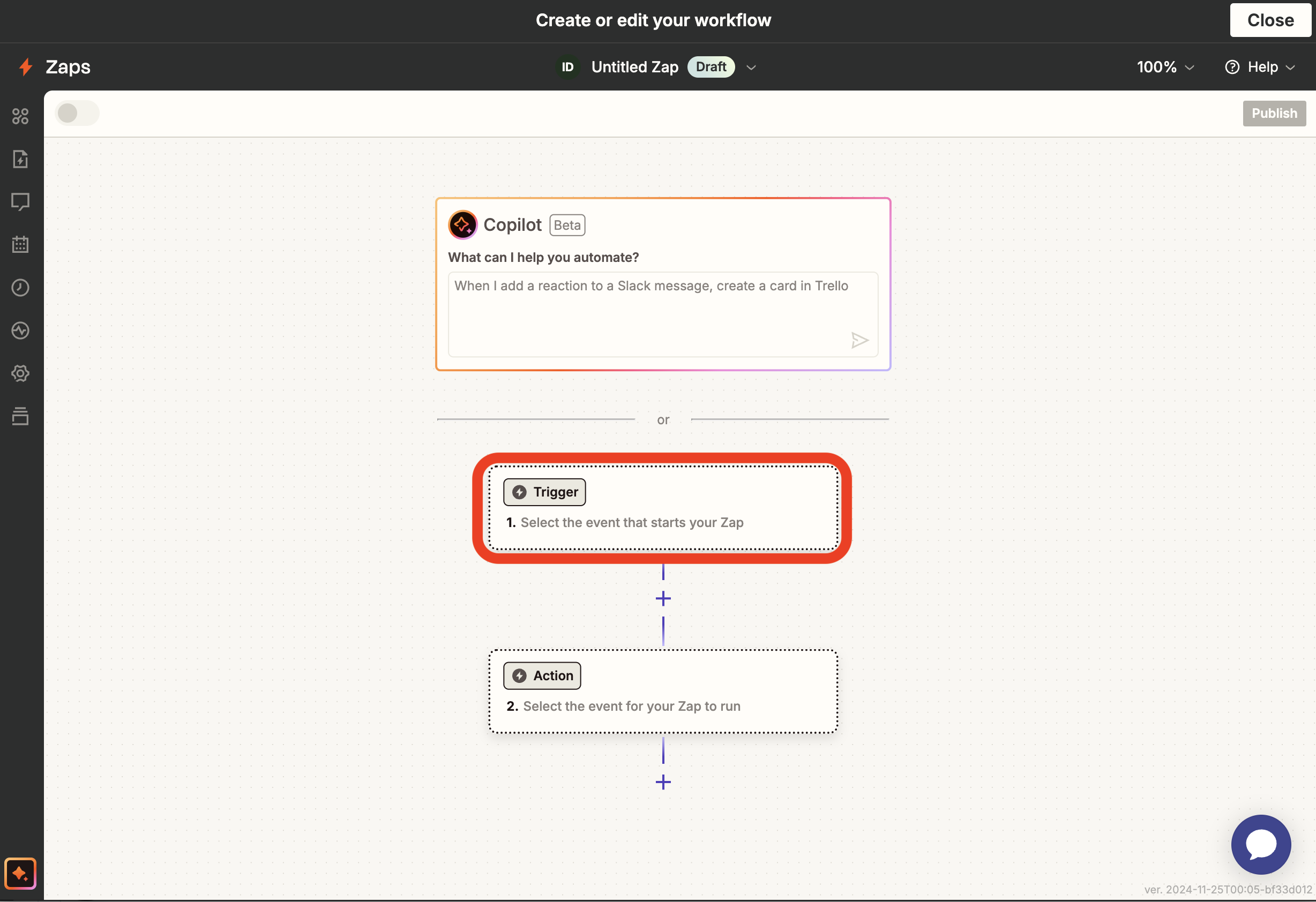 Now select the trigger you want to start the workflow. In this example we'll use Zapier's native "Schedule" trigger.
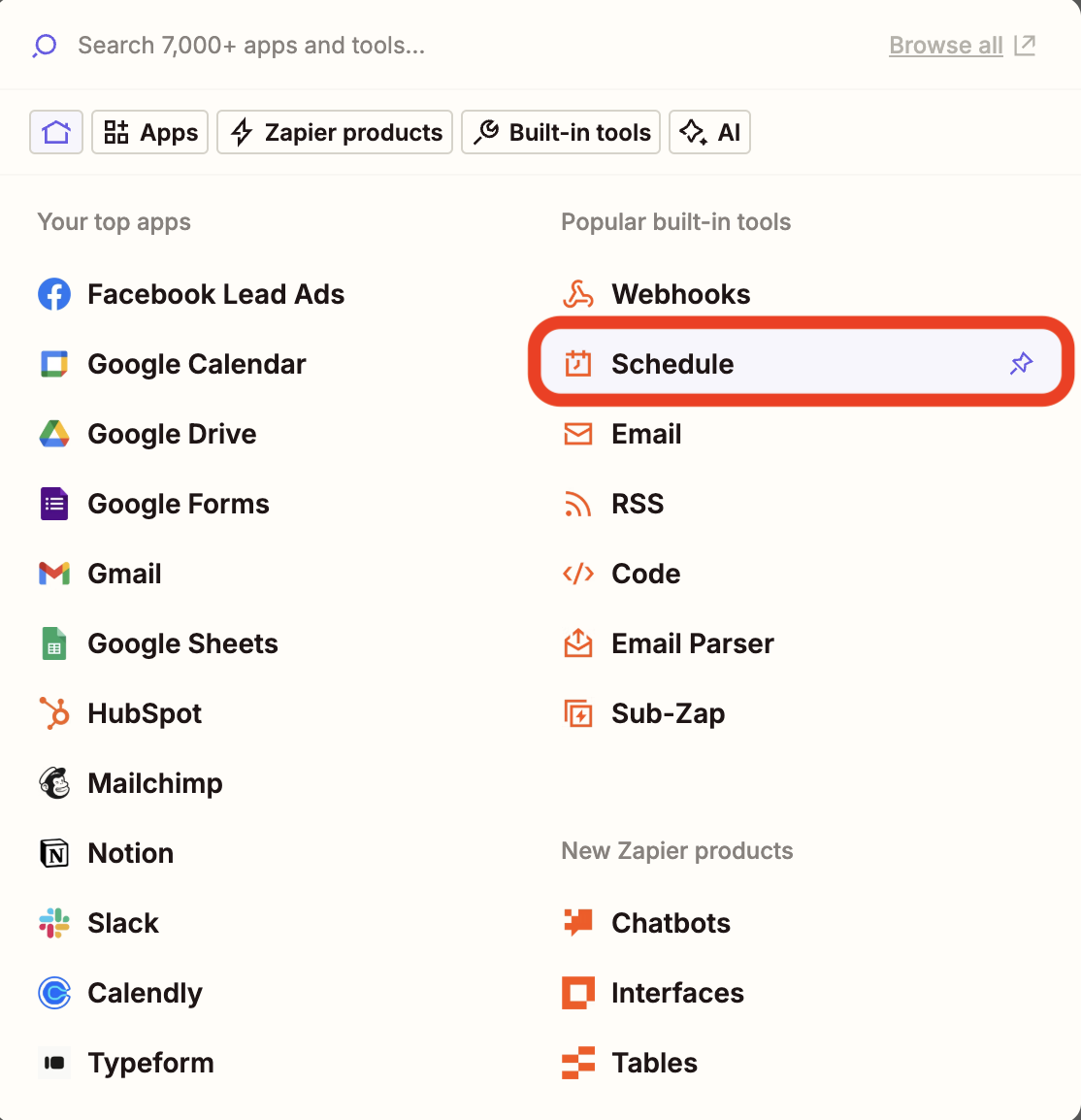 Configure the trigger to run however you want. Here we selected to run our workflow every day at 10am.
## Connect with your WordApp
Now for the fun part. We want to run our WordApp whenever the trigger fires. To do this, click on the action card below the trigger to open the action menu.
Now type in Wordware and select Wordware as your desired app.
Configure the trigger to run however you want. Here we selected to run our workflow every day at 10am.
## Connect with your WordApp
Now for the fun part. We want to run our WordApp whenever the trigger fires. To do this, click on the action card below the trigger to open the action menu.
Now type in Wordware and select Wordware as your desired app.
 Once you have Wordware selected, choose run app as your desired action event. Now we need to authenticate with Wordware.
Press the sign in button and enter your API Key.
Once you have Wordware selected, choose run app as your desired action event. Now we need to authenticate with Wordware.
Press the sign in button and enter your API Key.
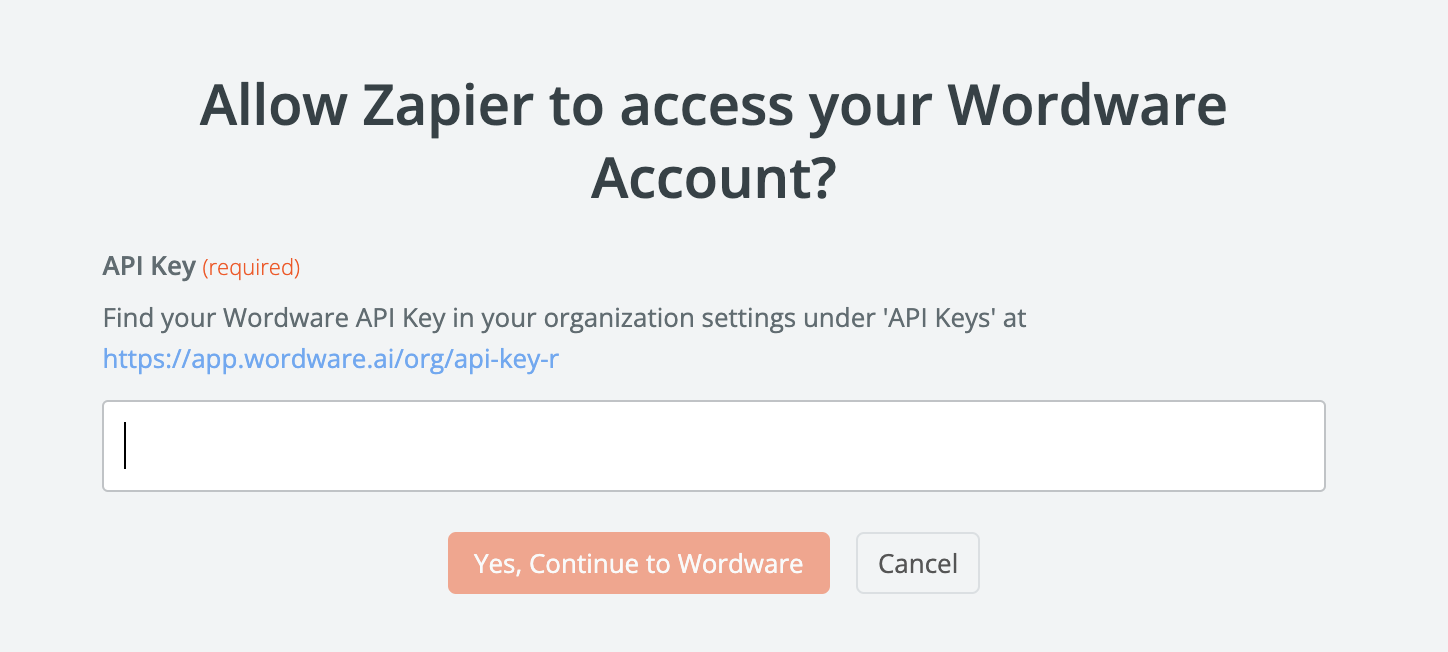 You should now see your Wordware organization inside of the Account section. Next, let's select which app we want to run.
Open the App Id dropdown and select the WordApp you want to run in this workflow.
You should now see your Wordware organization inside of the Account section. Next, let's select which app we want to run.
Open the App Id dropdown and select the WordApp you want to run in this workflow.
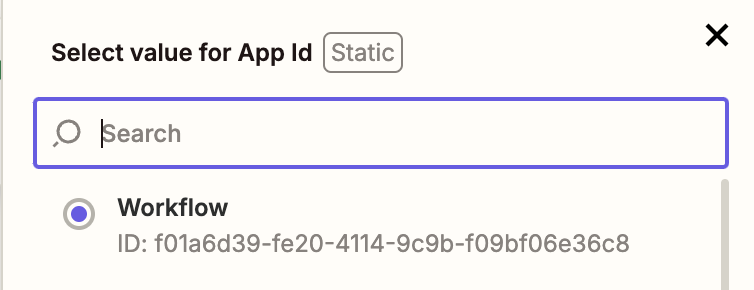 Now select the version of the app you want to run.
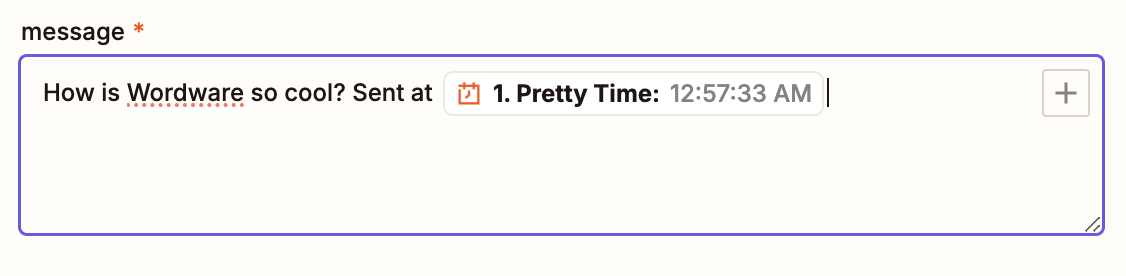
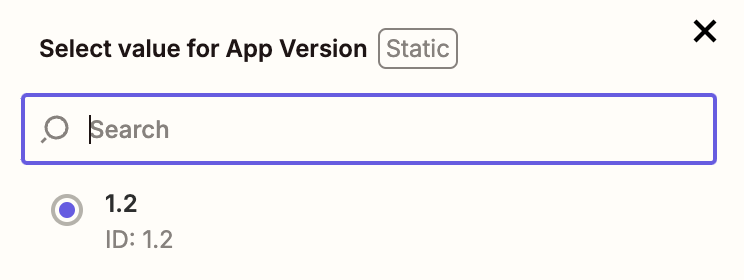 Finally, if your app requires any input, you can add it in the input fields. If you want to reference the trigger's data, you can do so by clicking the "+" button next to the input field.
 ## Test the workflow
Once you have all of the inputs configured, you can click the "Test step" button to make sure your workflow is working as expected.
If you have not run your app before, you will be prompted to run it once manually to simulate the responses we would get when the workflow actually runs.
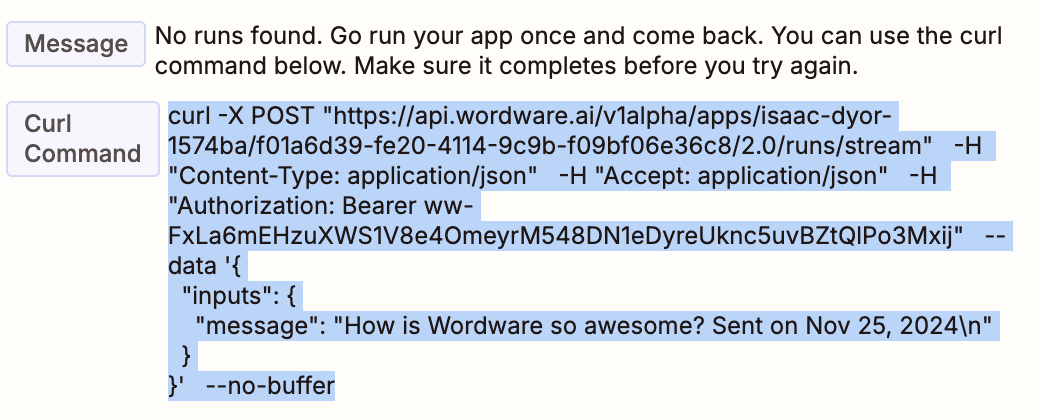
Select the provided curl command and run it in your terminal.
It should stream back a response.
## Test the workflow
Once you have all of the inputs configured, you can click the "Test step" button to make sure your workflow is working as expected.
If you have not run your app before, you will be prompted to run it once manually to simulate the responses we would get when the workflow actually runs.
Select the provided curl command and run it in your terminal.
It should stream back a response.
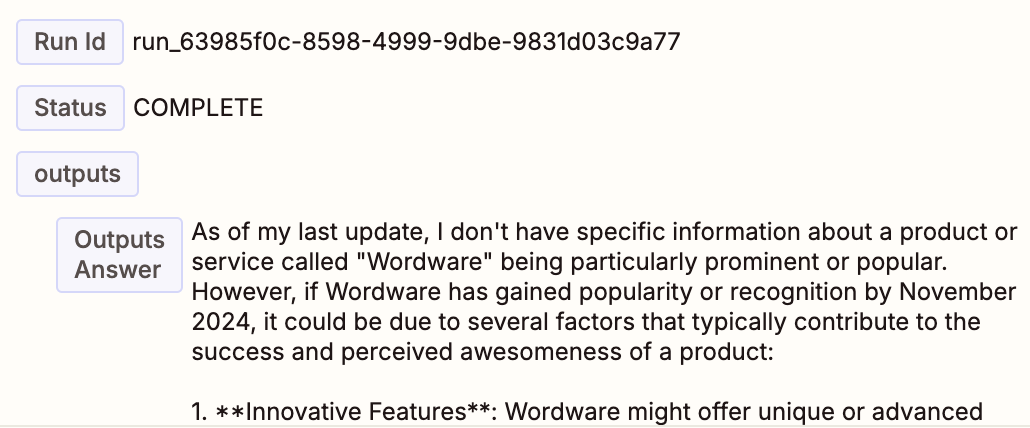
 Once the run has completed, navigate back to the Zapier editor and click the "Retest step" button to make sure the app is running as expected.
After testing, you should see the run id, the status of the run, and any outputs from the app.
Once the run has completed, navigate back to the Zapier editor and click the "Retest step" button to make sure the app is running as expected.
After testing, you should see the run id, the status of the run, and any outputs from the app.
 ## Using WordApp outputs
We now set up a WordApp that runs whenever the trigger fires. But what if we want to use the output of the WordApp in another Zapier action?
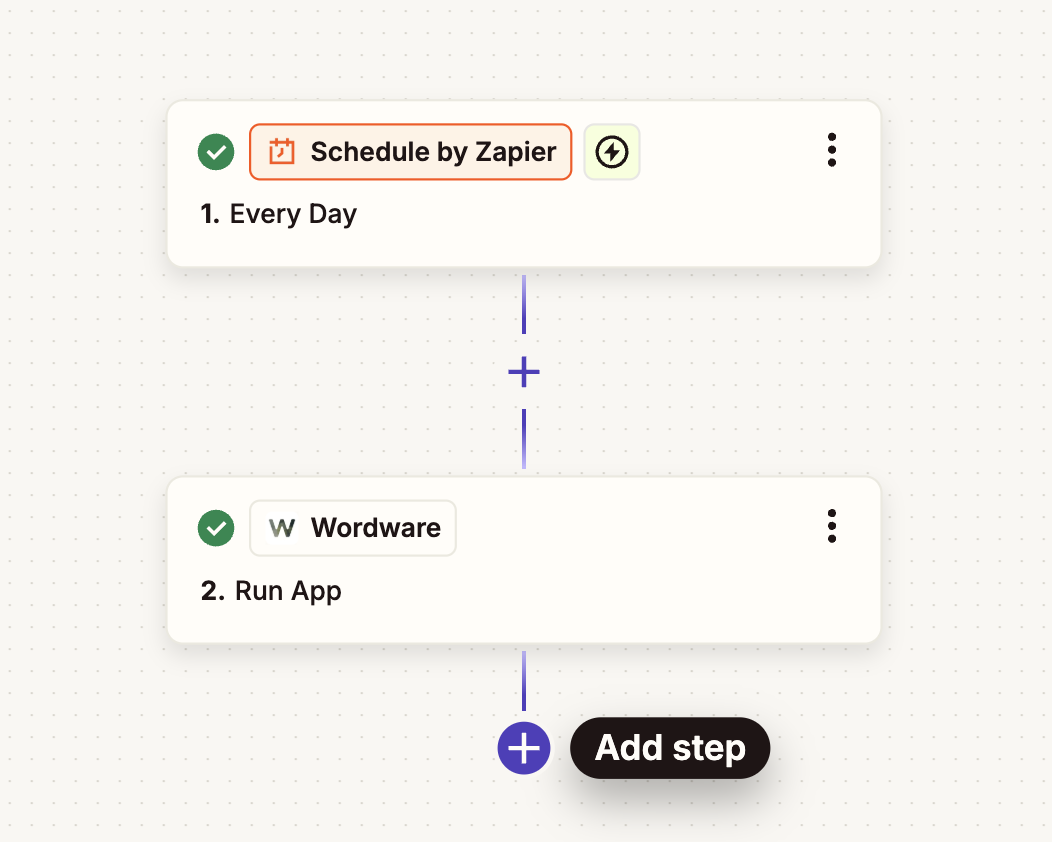
To do this, lets add a new step to our workflow. Select the "Add step" button below the current step.
## Using WordApp outputs
We now set up a WordApp that runs whenever the trigger fires. But what if we want to use the output of the WordApp in another Zapier action?
To do this, lets add a new step to our workflow. Select the "Add step" button below the current step.
 Select the app you want to use the output from the WordApp. In this example we will use the "Google Sheets" app to store the output in a spreadsheet.
Choose your desired action, and make sure to authenticate if necessary. In this case we will use the "Create row" action.
Select the app you want to use the output from the WordApp. In this example we will use the "Google Sheets" app to store the output in a spreadsheet.
Choose your desired action, and make sure to authenticate if necessary. In this case we will use the "Create row" action.
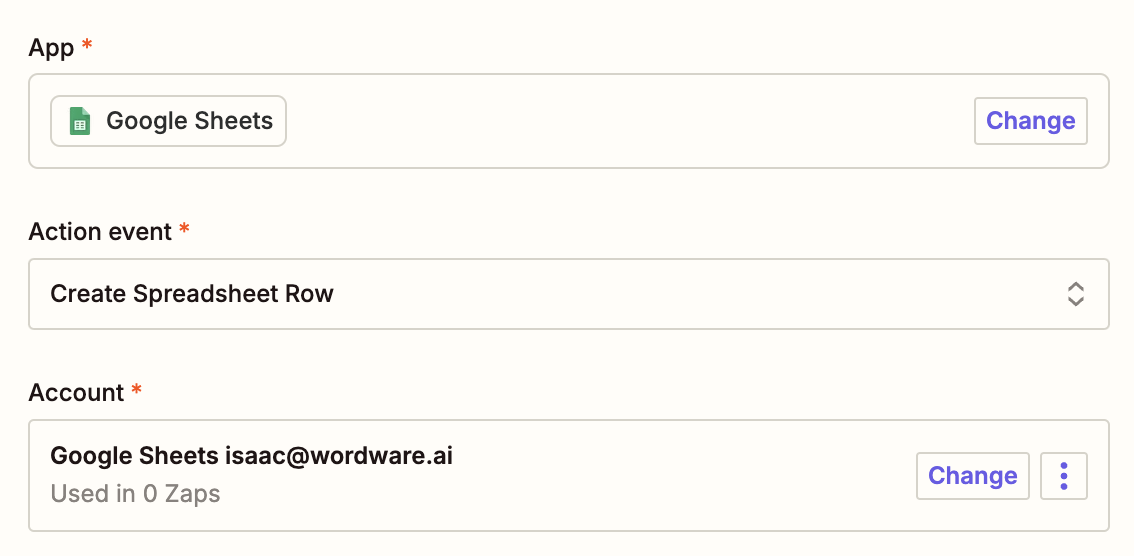 In the configure section, fill out the required input fields.
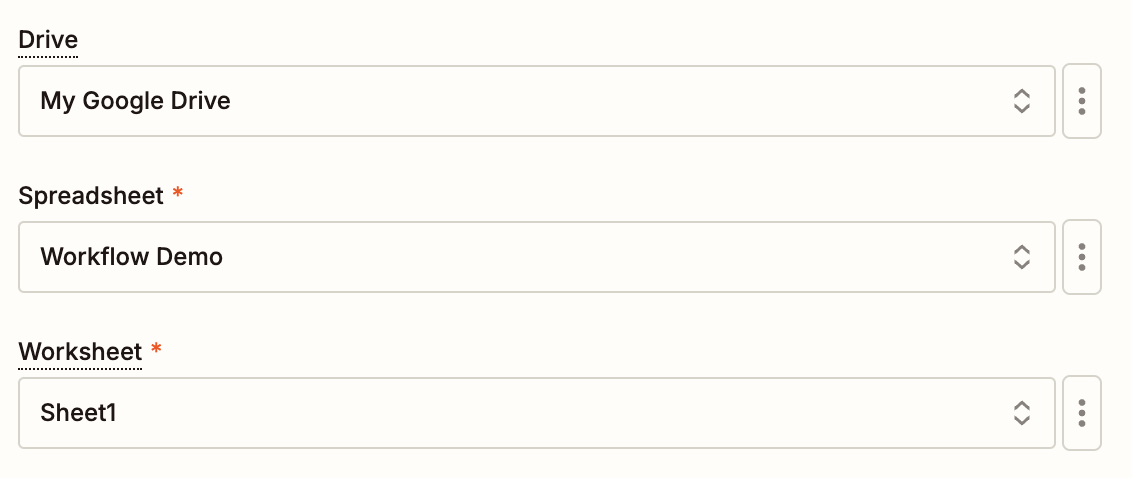 Now to reference the output from the WordApp you can type backslash `/` or press the `+` button next to the input field.
Select your WordApp from earlier and you can choose any of the outputs from the WordApp.
Now to reference the output from the WordApp you can type backslash `/` or press the `+` button next to the input field.
Select your WordApp from earlier and you can choose any of the outputs from the WordApp.
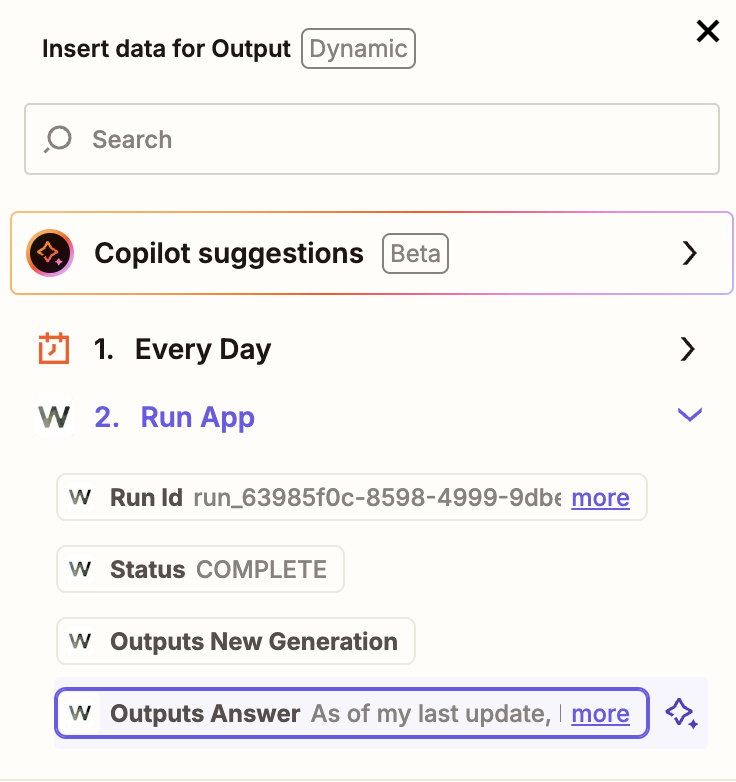 Now press the "Test step" button to test the workflow, and you should see the output from the WordApp in the Google Sheets app.
## Publish the workflow
Once you have successfully tested the workflow, you can click the "Publish" button to live deploy the workflow.
Now press the "Test step" button to test the workflow, and you should see the output from the WordApp in the Google Sheets app.
## Publish the workflow
Once you have successfully tested the workflow, you can click the "Publish" button to live deploy the workflow.
 Your workflow is now live and will run automatically based on your trigger configuration. This has been a basic
example of how to use the Wordware-Zapier integration, but the real power comes from the fact that you can now use any
of the 1000s of apps that Zapier supports with your WordApps!
To utilize the full power of this integration, reference the [Zapier docs](https://docs.zapier.com/platform/home) to see
how to make more complex workflows. Happy automating!
Walk through a simple chatbot recipe to accomplish your goals with Wordware
Add custom JavaScript or Python code to your WordApp to do anything you can imagine.
Book a call with one of our experts to get a personalized walkthrough of Wordware.
See how generations enable you to accomplish most anything you can imagine.
Your workflow is now live and will run automatically based on your trigger configuration. This has been a basic
example of how to use the Wordware-Zapier integration, but the real power comes from the fact that you can now use any
of the 1000s of apps that Zapier supports with your WordApps!
To utilize the full power of this integration, reference the [Zapier docs](https://docs.zapier.com/platform/home) to see
how to make more complex workflows. Happy automating!
Walk through a simple chatbot recipe to accomplish your goals with Wordware
Add custom JavaScript or Python code to your WordApp to do anything you can imagine.
Book a call with one of our experts to get a personalized walkthrough of Wordware.
See how generations enable you to accomplish most anything you can imagine.